Bring Your Model Python

Connect your model to Nextmv with the Python SDK

A tutorial to explore the Nextmv Platform using a custom model and the Python SDK.

βŒ›οΈ Approximate time to complete: 20 min.

In this tutorial you will learn how to bring your own decision model to the Nextmv Platform, from scratch. Complete this tutorial if you:

  • Have a pre-existing decision model and you want to explore the Nextmv Platform using the Python SDK.
  • Are fluent using Python 🐍.

To complete this tutorial, we will use two external examples, working under the principle that they are not Nextmv-created decision models. You can, and should, use your own decision model, or follow along with the examples provided:

At a high level, this tutorial will go through the following steps using both examples:

  1. Nextmv-ify the decision model.
  2. Run it locally.
  3. Track local runs remotely.
  4. Push the model to Nextmv Cloud.
  5. Run the model remotely.
  6. Perform scenario testing.

Let’s dive right in 🀿.

1. Prepare the executable code

If you are working with your own decision model and already know that it executes, feel free to skip this step.

The decision model is composed of executable code that solves an optimization problem. Copy the desired example code to a script named main.py.

#  ___________________________________________________________________________
#
#  Pyomo: Python Optimization Modeling Objects
#  Copyright (c) 2015-2025
#  National Technology and Engineering Solutions of Sandia, LLC
#  Under the terms of Contract DE-NA0003525 with National Technology and
#  Engineering Solutions of Sandia, LLC, the U.S. Government retains certain
#  rights in this software.
#  This software is distributed under the 3-clause BSD License.
#  ___________________________________________________________________________


#!/usr/bin/env python
# -*- coding: utf-8 -*-

# Import
from pyomo.environ import *
 
# Creation of a Concrete Model
model = ConcreteModel()
 
## Define sets ##
#  Sets
#       i   canning plants   / seattle, san-diego /
#       j   markets          / new-york, chicago, topeka / ;
model.i = Set(initialize=['seattle','san-diego'], doc='Canning plants')
model.j = Set(initialize=['new-york','chicago', 'topeka'], doc='Markets')
 
## Define parameters ##
#   Parameters
#       a(i)  capacity of plant i in cases
#         /    seattle     350
#              san-diego   600  /
#       b(j)  demand at market j in cases
#         /    new-york    325
#              chicago     300
#              topeka      275  / ;
model.a = Param(model.i, initialize={'seattle':350,'san-diego':600}, doc='Capacity of plant i in cases')
model.b = Param(model.j, initialize={'new-york':325,'chicago':300,'topeka':275}, doc='Demand at market j in cases')
#  Table d(i,j)  distance in thousands of miles
#                    new-york       chicago      topeka
#      seattle          2.5           1.7          1.8
#      san-diego        2.5           1.8          1.4  ;
dtab = {
    ('seattle',  'new-york') : 2.5,
    ('seattle',  'chicago')  : 1.7,
    ('seattle',  'topeka')   : 1.8,
    ('san-diego','new-york') : 2.5,
    ('san-diego','chicago')  : 1.8,
    ('san-diego','topeka')   : 1.4,
    }
model.d = Param(model.i, model.j, initialize=dtab, doc='Distance in thousands of miles')
#  Scalar f  freight in dollars per case per thousand miles  /90/ ;
model.f = Param(initialize=90, doc='Freight in dollars per case per thousand miles')
#  Parameter c(i,j)  transport cost in thousands of dollars per case ;
#            c(i,j) = f * d(i,j) / 1000 ;
def c_init(model, i, j):
  return model.f * model.d[i,j] / 1000
model.c = Param(model.i, model.j, initialize=c_init, doc='Transport cost in thousands of dollar per case')
 
## Define variables ##
#  Variables
#       x(i,j)  shipment quantities in cases
#       z       total transportation costs in thousands of dollars ;
#  Positive Variable x ;
model.x = Var(model.i, model.j, bounds=(0.0,None), doc='Shipment quantities in case')
 
## Define constraints ##
# supply(i)   observe supply limit at plant i
# supply(i) .. sum (j, x(i,j)) =l= a(i)
def supply_rule(model, i):
  return sum(model.x[i,j] for j in model.j) <= model.a[i]
model.supply = Constraint(model.i, rule=supply_rule, doc='Observe supply limit at plant i')
# demand(j)   satisfy demand at market j ;  
# demand(j) .. sum(i, x(i,j)) =g= b(j);
def demand_rule(model, j):
  return sum(model.x[i,j] for i in model.i) >= model.b[j]  
model.demand = Constraint(model.j, rule=demand_rule, doc='Satisfy demand at market j')
 
## Define Objective and solve ##
#  cost        define objective function
#  cost ..        z  =e=  sum((i,j), c(i,j)*x(i,j)) ;
#  Model transport /all/ ;
#  Solve transport using lp minimizing z ;
def objective_rule(model):
  return sum(model.c[i,j]*model.x[i,j] for i in model.i for j in model.j)
model.objective = Objective(rule=objective_rule, sense=minimize, doc='Define objective function')
 
 
## Display of the output ##
# Display x.l, x.m ;
def pyomo_postprocess(options=None, instance=None, results=None):
  model.x.display()
 
# This is an optional code path that allows the script to be run outside of
# pyomo command-line.  For example:  python transport.py
if __name__ == '__main__':
    # This emulates what the pyomo command-line tools does
    from pyomo.opt import SolverFactory
    import pyomo.environ
    opt = SolverFactory("glpk")
    results = opt.solve(model)
    #sends results to stdout
    results.write()
    print("\nDisplaying Solution\n" + '-'*60)
    pyomo_postprocess(None, model, results)
Copy

2. Install requirements

If you are working with your own decision model and already have all requirements ready for it, feel free to skip this step.

Make sure you have the appropriate requirements installed for your model. If you don't have one already, create a requirements.txt file in the root of your project with the Python package requirements needed.

Install the requirements by running the following command:

pip install -r requirements.txt
Copy

The Pyomo example uses the GLPK solver. Make sure you install it as well.

brew install glpk
Copy

For Windows, install from SourceForge.

3. Run the executable code

If you are working with your own decision model and already know that it executes, feel free to skip this step.

Make sure your decision model works by running the executable code.

python main.py
Copy

Here is the output produced by both examples.

# ==========================================================
# = Solver Results                                         =
# ==========================================================
# ----------------------------------------------------------
#   Problem Information
# ----------------------------------------------------------
Problem:
- Name: unknown
  Lower bound: 153.675
  Upper bound: 153.675
  Number of objectives: 1
  Number of constraints: 5
  Number of variables: 6
  Number of nonzeros: 12
  Sense: minimize
# ----------------------------------------------------------
#   Solver Information
# ----------------------------------------------------------
Solver:
- Status: ok
  Termination condition: optimal
  Statistics:
    Branch and bound:
      Number of bounded subproblems: 0
      Number of created subproblems: 0
  Error rc: 0
  Time: 0.006303071975708008
# ----------------------------------------------------------
#   Solution Information
# ----------------------------------------------------------
Solution:
- number of solutions: 0
  number of solutions displayed: 0

Displaying Solution
------------------------------------------------------------
x : Shipment quantities in case
    Size=6, Index=i*j
    Key                       : Lower : Value : Upper : Fixed : Stale : Domain
     ('san-diego', 'chicago') :   0.0 :   0.0 :  None : False : False :  Reals
    ('san-diego', 'new-york') :   0.0 : 275.0 :  None : False : False :  Reals
      ('san-diego', 'topeka') :   0.0 : 275.0 :  None : False : False :  Reals
       ('seattle', 'chicago') :   0.0 : 300.0 :  None : False : False :  Reals
      ('seattle', 'new-york') :   0.0 :  50.0 :  None : False : False :  Reals
        ('seattle', 'topeka') :   0.0 :   0.0 :  None : False : False :  Reals
Copy

4. Nextmv-ify the decision model

We are going to turn the executable decision model into a Nextmv application.

So, what is a Nextmv application? A Nextmv application is an entity that contains a decision model as executable code. An Application can make a run by taking an input, executing the decision model, and producing an output. An Application is defined by its code, and a configuration file named app.yaml, known as the "app manifest".

Think of the app as a shell, or workspace, that contains your decision model code, and provides the necessary structure to run it.

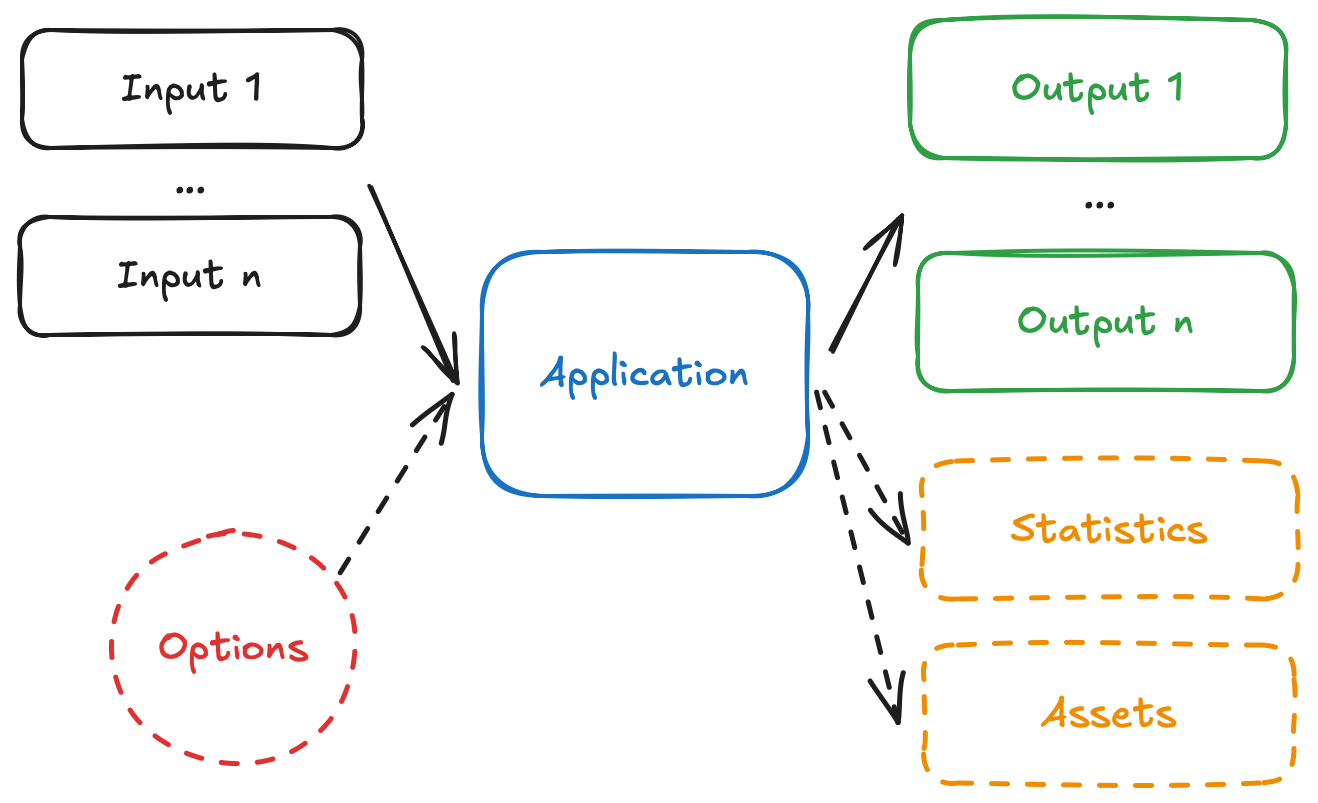
A run on a Nextmv application follows this convention:
App diagram

  • The app receives one, or more, inputs (problem data) through stdin or files.
  • The app run can be configured through options that are received as CLI arguments.
  • The app processes the inputs, and executes the decision model.
  • The app produces one, or more, outputs (solutions) and prints to stdout or files.
  • The app optionally produces statistics (metrics) and assets (can be visual, like charts).

We are going to adapt the examples so that they can follow these conventions.

Start by adding the app.yaml file, which is known as the app manifest, to the root of the project. This file contains the configuration of the app.

type: python
runtime: ghcr.io/nextmv-io/runtime/pyomo:latest
files:
  - main.py
python:
  pip-requirements: requirements.txt
configuration:
  content:
    format: json
  options:
    items:
      - name: duration
        description: Duration for the solver, in seconds.
        required: false
        option_type: float
        default: 1
        additional_attributes:
          min: 0
          max: 10
          step: 1
        ui:
          control_type: slider
      - name: solver
        description: Solver provider to use.
        required: false
        option_type: string
        default: glpk
        additional_attributes:
          values:
            - scip
            - cbc
            - glpk
        ui:
          control_type: select
      - name: input
        description: Path to input file. Default is stdin.
        required: false
        option_type: string
        default: ""
      - name: output
        description: Path to output file. Default is stdout.
        required: false
        option_type: string
        default: ""
Copy

This tutorial is not meant to discuss the app manifest in-depth, for that you can go to the manifest docs. However, these are the main attributes shown in the manifests:

  • type: both are python applications.
  • runtime: Pyomo uses the special pyomo:latest runtime, as it comes with solvers pre-installed. HiGHS uses the standard python:3.11 runtime.
  • files: contains files that make up the executable code of the app. In both cases only a single main.py file is needed. Make sure to include all files and dirs that are needed for your decision model.
  • python.pip-requirements: specifies in both cases the file with the Python packages that need to be installed for the application.
  • configuration.content: Pyomo will use the json format, so it does not need additional configurations. HiGHS will use multi-file, so additional configurations are needed. As you complete this tutorial, the difference between the two formats will become clearer.
  • configuration.options: for both examples, we are adding options to the application, which allow you to configure runs, with parameters such as solver duration.

For both examples, a dependency for nextmv (the Nextmv Python SDK) is also added. This dependency is optional, and SDK modeling constructs are not needed to run a Nextmv Application. However, using the SDK modeling features makes it easier to work with Nextmv apps, as a lot of convenient functionality is already baked in, like:

  • Reading and interpreting the manifest.
  • Easily reading and writing files based on the content format.
  • Parsing and using options from the command line, or environment variables.
  • Structuring inputs and outputs.

These are the new requirements.txt

pyomo>=6.9.5
nextmv[all]>=0.35.1
Copy

Now, you can overwrite your main.py files with the Nextmv-ified version.

#  ___________________________________________________________________________
#
#  Pyomo: Python Optimization Modeling Objects
#  Copyright (c) 2015-2025
#  National Technology and Engineering Solutions of Sandia, LLC
#  Under the terms of Contract DE-NA0003525 with National Technology and
#  Engineering Solutions of Sandia, LLC, the U.S. Government retains certain
#  rights in this software.
#  This software is distributed under the 3-clause BSD License.
#  ___________________________________________________________________________


#!/usr/bin/env python
# -*- coding: utf-8 -*-


import nextmv

# Import
from pyomo.environ import *

# Duration parameter for the solver.
SUPPORTED_PROVIDER_DURATIONS = {
    "cbc": "sec",
    "glpk": "tmlim",
    "scip": "limits/time",
}

# Creation of a Concrete Model
model = ConcreteModel()

nextmv.redirect_stdout()
manifest = nextmv.Manifest.from_yaml(".")
options = manifest.extract_options()
input = nextmv.load(path=options.input)

## Define sets ##
#  Sets
#       i   canning plants   / seattle, san-diego /
#       j   markets          / new-york, chicago, topeka / ;
sets = input.data["sets"]
model.i = Set(initialize=sets["i"], doc="Canning plants")
model.j = Set(initialize=sets["j"], doc="Markets")

## Define parameters ##
#   Parameters
#       a(i)  capacity of plant i in cases
#         /    seattle     350
#              san-diego   600  /
#       b(j)  demand at market j in cases
#         /    new-york    325
#              chicago     300
#              topeka      275  / ;
params = input.data["parameters"]
model.a = Param(
    model.i,
    initialize=params["a"],
    doc="Capacity of plant i in cases",
)
model.b = Param(
    model.j,
    initialize=params["b"],
    doc="Demand at market j in cases",
)
#  Table d(i,j)  distance in thousands of miles
#                    new-york       chicago      topeka
#      seattle          2.5           1.7          1.8
#      san-diego        2.5           1.8          1.4  ;
dtab = {(edge["from"], edge["to"]): edge["cost"] for edge in params["d"]}
model.d = Param(model.i, model.j, initialize=dtab, doc="Distance in thousands of miles")
#  Scalar f  freight in dollars per case per thousand miles  /90/ ;
model.f = Param(
    initialize=params["f"], doc="Freight in dollars per case per thousand miles"
)


#  Parameter c(i,j)  transport cost in thousands of dollars per case ;
#            c(i,j) = f * d(i,j) / 1000 ;
def c_init(model, i, j):
    return model.f * model.d[i, j] / 1000


model.c = Param(
    model.i,
    model.j,
    initialize=c_init,
    doc="Transport cost in thousands of dollar per case",
)

## Define variables ##
#  Variables
#       x(i,j)  shipment quantities in cases
#       z       total transportation costs in thousands of dollars ;
#  Positive Variable x ;
model.x = Var(model.i, model.j, bounds=(0.0, None), doc="Shipment quantities in case")


## Define constraints ##
# supply(i)   observe supply limit at plant i
# supply(i) .. sum (j, x(i,j)) =l= a(i)
def supply_rule(model, i):
    return sum(model.x[i, j] for j in model.j) <= model.a[i]


model.supply = Constraint(
    model.i, rule=supply_rule, doc="Observe supply limit at plant i"
)


# demand(j)   satisfy demand at market j ;
# demand(j) .. sum(i, x(i,j)) =g= b(j);
def demand_rule(model, j):
    return sum(model.x[i, j] for i in model.i) >= model.b[j]


model.demand = Constraint(model.j, rule=demand_rule, doc="Satisfy demand at market j")


## Define Objective and solve ##
#  cost        define objective function
#  cost ..        z  =e=  sum((i,j), c(i,j)*x(i,j)) ;
#  Model transport /all/ ;
#  Solve transport using lp minimizing z ;
def objective_rule(model):
    return sum(model.c[i, j] * model.x[i, j] for i in model.i for j in model.j)


model.objective = Objective(
    rule=objective_rule, sense=minimize, doc="Define objective function"
)


## Display of the output ##
# Display x.l, x.m ;
def pyomo_postprocess(options=None, instance=None, results=None):
    model.x.display()


# This is an optional code path that allows the script to be run outside of
# pyomo command-line.  For example:  python transport.py
if __name__ == "__main__":
    # This emulates what the pyomo command-line tools does
    from pyomo.opt import SolverFactory

    opt = SolverFactory(options.solver)
    opt.options[SUPPORTED_PROVIDER_DURATIONS[options.solver]] = options.duration
    results = opt.solve(model)
    # sends results to stdout
    results.write()
    print("\nDisplaying Solution\n" + "-" * 60)
    pyomo_postprocess(None, model, results)

    shipments = [
        {"from": ix[0], "to": ix[1], "quantity": x()}
        for ix, x in model.x.items()
        if x() > 0.01
    ]
    solution = {"shipments": shipments}
    statistics = nextmv.Statistics(
        result=nextmv.ResultStatistics(
            duration=results.solver.time,
            value=value(model.objective, exception=False),
            custom={
                "variables": model.nvariables(),
                "constraints": model.nconstraints(),
                "num_edges_used": len(shipments),
            },
        )
    )
    output = nextmv.Output(
        options=options,
        solution=solution,
        statistics=statistics,
    )
    nextmv.write(output, path=options.output)
Copy

This is a short summary of the changes introduced for each of the examples:

  • Pyomo
    • Load the app manifest from the app.yaml file.
    • Extract options (configurations) from the manifest.
    • The input data is no longer in the Python file itself. We will move it to a file under inputs/problem.json. In a single json file we will define the complete input. Given that we are working with the json content format, we use the Python SDK to load the input data from stdin.
    • Modify the definition of sets, and parameters to use the data from the loaded input.
    • Store the solution to the problem, and solver metrics (statistics), in an output.
    • Write the output to stdout, given that we are working with the json content format.
  • HiGHS
    • Load the app manifest from the app.yaml file.
    • Extract options (configurations) from the manifest.
    • The input data is no longer in the Python file itself. We are representing the problem with several files under the inputs directory. In inputs/edges.csv we are going to write the edges with their corresponding weights. In inputs/nodes.json we are going to set the information about nodes, like which node is the origin and which is the destination. When working with more than one file, the multi-file content format is ideal. We use the Python SDK to load the input data from the various files.
    • Modify the definition of nodes, edges, and decision variables to use data from the loaded inputs.
    • Store the solution to the problem, and solver metrics (statistics), in an output.
    • Write the output to several files, under the outputs directory, given that we are working with the multi-file content format.

Here are the data files that you need to place in an inputs directory.

  • Pyomo

    {
      "sets": {
        "i": ["seattle", "san-diego"],
        "j": ["new-york", "chicago", "topeka"]
      },
      "parameters": {
        "a": {
          "seattle": 350,
          "san-diego": 600
        },
        "b": {
          "new-york": 325,
          "chicago": 300,
          "topeka": 275
        },
        "d": [
          { "from": "seattle", "to": "new-york", "cost": 2.5 },
          { "from": "seattle", "to": "chicago", "cost": 1.7 },
          { "from": "seattle", "to": "topeka", "cost": 1.8 },
          { "from": "san-diego", "to": "new-york", "cost": 2.5 },
          { "from": "san-diego", "to": "chicago", "cost": 1.8 },
          { "from": "san-diego", "to": "topeka", "cost": 1.4 }
        ],
        "f": 90
      }
    }
    
    Copy
  • HiGHS

    from,to,weight
    A,B,2.0
    B,C,3.0
    A,C,1.5
    B,D,2.5
    C,D,1.0
    
    Copy

After you are done Nextmv-ifying, your Nextmv app should have the following structure, for the examples provided.

.
β”œβ”€β”€ app.yaml
β”œβ”€β”€ inputs
β”‚Β Β  └── problem.json
β”œβ”€β”€ main.py
└── requirements.txt
Copy

Now you are ready to explore the Nextmv Platform πŸ₯³.

5. Install the Nextmv Python SDK

Install the Nextmv Python SDK, with additional requirements:

pip install --upgrade 'nextmv[all]'
Copy

Please note that even if you are not using the Python SDK's modeling constructs as part of your executable code, you still need to install it for this tutorial. On the other hand, if you decided that you want to use the Python SDK for the executable code, you would have needed to install it.

6. Run the Nextmv application locally

The local package of the Nextmv Python SDK provides functionality to run Nextmv applications locally on your machine.

The local experience is completely free of charge and does not require a Nextmv account.

Create a script named app1.py, or use a cell of a Jupyter notebook. Copy and paste the following code into it, making sure you use the correct app src (for this example, the current working directory, ".").:

import os
import time

import nextmv
from nextmv import local

# Instantiate the local application.
local_app = local.Application(src=".")

# Provide any input you want for the app. This input can come from a file, for
# example.
problem = nextmv.load(path=os.path.join("inputs", "problem.json"))
run_id_1 = local_app.new_run(input=problem.data)

# Sleep and get metadata, output (results), logs.
time.sleep(5)

run_metadata_1 = local_app.run_metadata(run_id=run_id_1)
nextmv.write(run_metadata_1)

run_results_1 = local_app.run_result(run_id=run_id_1)
nextmv.write(run_results_1.output)

run_logs_1 = local_app.run_logs(run_id=run_id_1)
print(run_logs_1)
Copy

When you instantiate a local application, the src argument must point to a directory where the app.yaml manifest file is located.

This will print the IDs of the runs created. The app runs start in the background. Run the script, or notebook cell, to get an output similar to this:

$ python app1.py

{
  "description": "Local run created at 2025-11-10T17:20:43.386461Z",
  "id": "local-h61b3nvr",
  "metadata": {
    "application_id": ".",
    "application_instance_id": "",
    "application_version_id": "",
    "created_at": "2025-11-10T17:20:43.386461Z",
    "duration": 1063.7,
    "error": "",
    "input_size": 877.0,
    "output_size": 0.0,
    "format": {
      "input": {
        "type": "json"
      },
      "output": {
        "type": "json"
      }
    },
    "status_v2": "succeeded"
  },
  "name": "local run local-h61b3nvr",
  "user_email": "",
  "console_url": ""
}
{
  "options": {
    "duration": 1,
    "solver": "glpk",
    "input": "",
    "output": ""
  },
  "solution": {
    "shipments": [
      {
        "from": "seattle",
        "to": "new-york",
        "quantity": 50.0
      },
      {
        "from": "seattle",
        "to": "chicago",
        "quantity": 300.0
      },
      {
        "from": "san-diego",
        "to": "new-york",
        "quantity": 275.0
      },
      {
        "from": "san-diego",
        "to": "topeka",
        "quantity": 275.0
      }
    ]
  },
  "statistics": {
    "result": {
      "duration": 0.006533145904541016,
      "value": 153.67499999999998,
      "custom": {
        "variables": 6,
        "constraints": 5,
        "num_edges_used": 4
      }
    },
    "schema": "v1"
  },
  "assets": []
}
# ==========================================================
# = Solver Results                                         =
# ==========================================================
# ----------------------------------------------------------
#   Problem Information
# ----------------------------------------------------------
Problem: 
- Name: unknown
  Lower bound: 153.675
  Upper bound: 153.675
  Number of objectives: 1
  Number of constraints: 5
  Number of variables: 6
  Number of nonzeros: 12
  Sense: minimize
# ----------------------------------------------------------
#   Solver Information
# ----------------------------------------------------------
Solver: 
- Status: ok
  Termination condition: optimal
  Statistics: 
    Branch and bound: 
      Number of bounded subproblems: 0
      Number of created subproblems: 0
  Error rc: 0
  Time: 0.006533145904541016
# ----------------------------------------------------------
#   Solution Information
# ----------------------------------------------------------
Solution: 
- number of solutions: 0
  number of solutions displayed: 0

Displaying Solution
------------------------------------------------------------
x : Shipment quantities in case
    Size=6, Index=i*j
    Key                       : Lower : Value : Upper : Fixed : Stale : Domain
     ('san-diego', 'chicago') :   0.0 :   0.0 :  None : False : False :  Reals
    ('san-diego', 'new-york') :   0.0 : 275.0 :  None : False : False :  Reals
      ('san-diego', 'topeka') :   0.0 : 275.0 :  None : False : False :  Reals
       ('seattle', 'chicago') :   0.0 : 300.0 :  None : False : False :  Reals
      ('seattle', 'new-york') :   0.0 :  50.0 :  None : False : False :  Reals
        ('seattle', 'topeka') :   0.0 :   0.0 :  None : False : False :  Reals

Copy

The local package allows you to perform runs on the application and store the inputs, options, logs, and outputs that are associated with the run. As you can tell, depending on the content format used for each application, you work with the data differently.

  • For a json application, you send a dict to the new_run method.
  • For a multi-file application, you specify a dir where the input files are stored.

Similarly, the content format dictates how to get the output data.

  • For a json application, the output dict can be obtained from the results.
  • For a multi-file application, the output files are written to the path specified in the argument.

The run is started and completed in a background process. Instead of sleeping and waiting for the results, you can poll for the run to be finished.

Create another script, which you can name app2.py, or use another cell in the Jupyter notebook. Copy and paste the following code into it, making sure you use the correct app src:

import os

import nextmv
from nextmv import local

# Instantiate the local application.
local_app = local.Application(src=".")

# Start a new run, loading the data from a file, and poll for results.
problem = nextmv.load(path=os.path.join("inputs", "problem.json"))
run_results_2 = local_app.new_run_with_result(input=problem.data)
nextmv.write(run_results_2)  # This time, print both metadata and output at once.

run_logs_2 = local_app.run_logs(run_id=run_results_2.id)
print(run_logs_2)
Copy

Running the app2.py script (or the new notebook cell), you'll notice that the results are duplicated, as you are performing the same run but waiting for the results concurrently.

$ python app2.py

{
  "description": "Local run created at 2025-11-17T21:44:29.206722Z",
  "id": "local-20dxditm",
  "metadata": {
    "application_id": ".",
    "application_instance_id": "",
    "application_version_id": "",
    "created_at": "2025-11-17T21:44:29.206722Z",
    "duration": 1160.7,
    "error": "",
    "input_size": 877.0,
    "output_size": 0.0,
    "format": {
      "input": {
        "type": "json"
      },
      "output": {
        "type": "json"
      }
    },
    "status_v2": "succeeded"
  },
  "name": "local run local-20dxditm",
  "user_email": "",
  "console_url": "",
  "output": {
    "options": {
      "duration": 1,
      "solver": "glpk",
      "input": "",
      "output": ""
    },
    "solution": {
      "shipments": [
        {
          "from": "seattle",
          "to": "new-york",
          "quantity": 50.0
        },
        {
          "from": "seattle",
          "to": "chicago",
          "quantity": 300.0
        },
        {
          "from": "san-diego",
          "to": "new-york",
          "quantity": 275.0
        },
        {
          "from": "san-diego",
          "to": "topeka",
          "quantity": 275.0
        }
      ]
    },
    "statistics": {
      "result": {
        "duration": 0.007156848907470703,
        "value": 153.67499999999998,
        "custom": {
          "variables": 6,
          "constraints": 5,
          "num_edges_used": 4
        }
      },
      "schema": "v1"
    },
    "assets": []
  }
}
# ==========================================================
# = Solver Results                                         =
# ==========================================================
# ----------------------------------------------------------
#   Problem Information
# ----------------------------------------------------------
Problem: 
- Name: unknown
  Lower bound: 153.675
  Upper bound: 153.675
  Number of objectives: 1
  Number of constraints: 5
  Number of variables: 6
  Number of nonzeros: 12
  Sense: minimize
# ----------------------------------------------------------
#   Solver Information
# ----------------------------------------------------------
Solver: 
- Status: ok
  Termination condition: optimal
  Statistics: 
    Branch and bound: 
      Number of bounded subproblems: 0
      Number of created subproblems: 0
  Error rc: 0
  Time: 0.007156848907470703
# ----------------------------------------------------------
#   Solution Information
# ----------------------------------------------------------
Solution: 
- number of solutions: 0
  number of solutions displayed: 0

Displaying Solution
------------------------------------------------------------
x : Shipment quantities in case
    Size=6, Index=i*j
    Key                       : Lower : Value : Upper : Fixed : Stale : Domain
     ('san-diego', 'chicago') :   0.0 :   0.0 :  None : False : False :  Reals
    ('san-diego', 'new-york') :   0.0 : 275.0 :  None : False : False :  Reals
      ('san-diego', 'topeka') :   0.0 : 275.0 :  None : False : False :  Reals
       ('seattle', 'chicago') :   0.0 : 300.0 :  None : False : False :  Reals
      ('seattle', 'new-york') :   0.0 :  50.0 :  None : False : False :  Reals
        ('seattle', 'topeka') :   0.0 :   0.0 :  None : False : False :  Reals

Copy

If you inspect the file structure of your application, you will find a tree similar to this:

.
β”œβ”€β”€ .nextmv
β”‚Β Β  └── runs
β”‚Β Β      β”œβ”€β”€ {RUN_ID_1}
β”‚Β Β      β”‚Β Β  β”œβ”€β”€ inputs
β”‚Β Β      β”‚Β Β  β”‚Β Β  └── input.json
β”‚Β Β      β”‚Β Β  β”œβ”€β”€ {RUN_ID_1}.json
β”‚Β Β      β”‚Β Β  β”œβ”€β”€ logs
β”‚Β Β      β”‚Β Β  β”‚Β Β  └── logs.log
β”‚Β Β      β”‚Β Β  β”œβ”€β”€ outputs
β”‚Β Β      β”‚Β Β  β”‚Β Β  β”œβ”€β”€ assets
β”‚Β Β      β”‚Β Β  β”‚Β Β  β”‚Β Β  └── assets.json
β”‚Β Β      β”‚Β Β  β”‚Β Β  β”œβ”€β”€ solutions
β”‚Β Β      β”‚Β Β  β”‚Β Β  β”‚Β Β  └── solution.json
β”‚Β Β      β”‚Β Β  β”‚Β Β  └── statistics
β”‚Β Β      β”‚Β Β  β”‚Β Β      └── statistics.json
β”‚Β Β      β”‚Β Β  └── visuals
β”‚Β Β      └── {RUN_ID_2}
β”‚Β Β          β”œβ”€β”€ inputs
β”‚Β Β          β”‚Β Β  └── input.json
β”‚Β Β          β”œβ”€β”€ {RUN_ID_2}.json
β”‚Β Β          β”œβ”€β”€ logs
β”‚Β Β          β”‚Β Β  └── logs.log
β”‚Β Β          β”œβ”€β”€ outputs
β”‚Β Β          β”‚Β Β  β”œβ”€β”€ assets
β”‚Β Β          β”‚Β Β  β”‚Β Β  └── assets.json
β”‚Β Β          β”‚Β Β  β”œβ”€β”€ solutions
β”‚Β Β          β”‚Β Β  β”‚Β Β  └── solution.json
β”‚Β Β          β”‚Β Β  └── statistics
β”‚Β Β          β”‚Β Β      └── statistics.json
β”‚Β Β          └── visuals
β”œβ”€β”€ app.py
β”œβ”€β”€ app.yaml
β”œβ”€β”€ inputs
β”‚Β Β  └── problem.json
β”œβ”€β”€ main.py
└── requirements.txt
Copy

The .nextmv dir is used to store and manage the local applications run in a structured way. The local package is used to interact with these files, with methods for starting runs, retrieving results, visualizing charts, and more.

7. Create an account

The local experience is a great free starting point, but the full suite of benefits starts with a Nextmv Cloud account.

  1. Visit the Nextmv Console to sign up for an account at https://cloud.nextmv.io.
  2. Verify your account.
    • You’ll receive an email asking to verify your account.
    • Follow the link in that email to sign in.
  3. Log in to your account. The Nextmv Console is ready to use!

Once you have logged in to your account, you need to fetch your API key. You can do so from your settings.

API keys

When you have your API key, it is convenient to save it as an environment variable so that you can use it for the rest of this tutorial.

export NEXTMV_API_KEY="<YOUR-API-KEY>"
Copy

8. Create a Nextmv Cloud Application

Create another script, which you can name app3.py, or use another cell in the Jupyter notebook. Copy and paste the following code into it:

import os

from nextmv import cloud

# Instantiate the cloud application.
client = cloud.Client(api_key=os.getenv("NEXTMV_API_KEY"))
cloud_app = cloud.Application.new(
    client=client,
    name="test-pyomo-app",
    id="test-pyomo-app",
    exist_ok=True,
)
print("Cloud application created:", cloud_app.id)
Copy

After you run the script, or notebook cell, you should see an output similar to this one, where it confirms that the app was created successfully.

$ python app3.py

Cloud application created: test-pyomo-app
Copy

You can go to the Apps section in the Nextmv Console where you will see your applications.

Apps

9. Sync local runs to Nextmv Cloud

Create another script, which you can name app4.py, or use another cell in the Jupyter notebook. Copy and paste the following code into it, making sure you use the correct app src:

import os

from nextmv import cloud, local

# Instantiate the local application.
local_app = local.Application(src=".")

# Instantiate the cloud application.
client = cloud.Client(api_key=os.getenv("NEXTMV_API_KEY"))
cloud_app = cloud.Application(client=client, id="test-pyomo-app")

# Sync the local app's runs to the cloud app.
local_app.sync(target=cloud_app, verbose=True)
Copy

You will now track these runs in Nextmv Cloud, as external runs. After you run the script, or notebook cell, you should see an output similar to this one, where it shows which runs were synced successfully.

$ python app4.py

☁️ Starting sync of local application `.` to Nextmv Cloud application `test-highs-app`.
ℹ️  Found 4 local runs to sync from ./.nextmv/runs.
πŸ”„ Syncing local run `local-gmrkwzrp`...
βœ… Synced local run `local-gmrkwzrp` as remote run `{'run_id': 'devint-uPu85_zDg', 'synced_at': '2025-11-10T19:40:00.130408Z', 'app_id': 'test-highs-app'}`.
πŸ”„ Syncing local run `local-ihnmua49`...
βœ… Synced local run `local-ihnmua49` as remote run `{'run_id': 'devint-P5RwclkDg', 'synced_at': '2025-11-10T19:40:04.842384Z', 'app_id': 'test-highs-app'}`.
πŸ”„ Syncing local run `local-v8wh5r82`...
βœ… Synced local run `local-v8wh5r82` as remote run `{'run_id': 'devint-zRnwclzvg', 'synced_at': '2025-11-10T19:40:09.561436Z', 'app_id': 'test-highs-app'}`.
πŸ”„ Syncing local run `local-suoz75x3`...
βœ… Synced local run `local-suoz75x3` as remote run `{'run_id': 'devint-i8DQ5_kDg', 'synced_at': '2025-11-10T19:40:14.467164Z', 'app_id': 'test-highs-app'}`.
πŸš€ Process completed, synced local application `.` to Nextmv Cloud application `test-highs-app`: 4/4 runs.
Copy

Depending on the number of times you run the script, you might be syncing more or fewer runs.

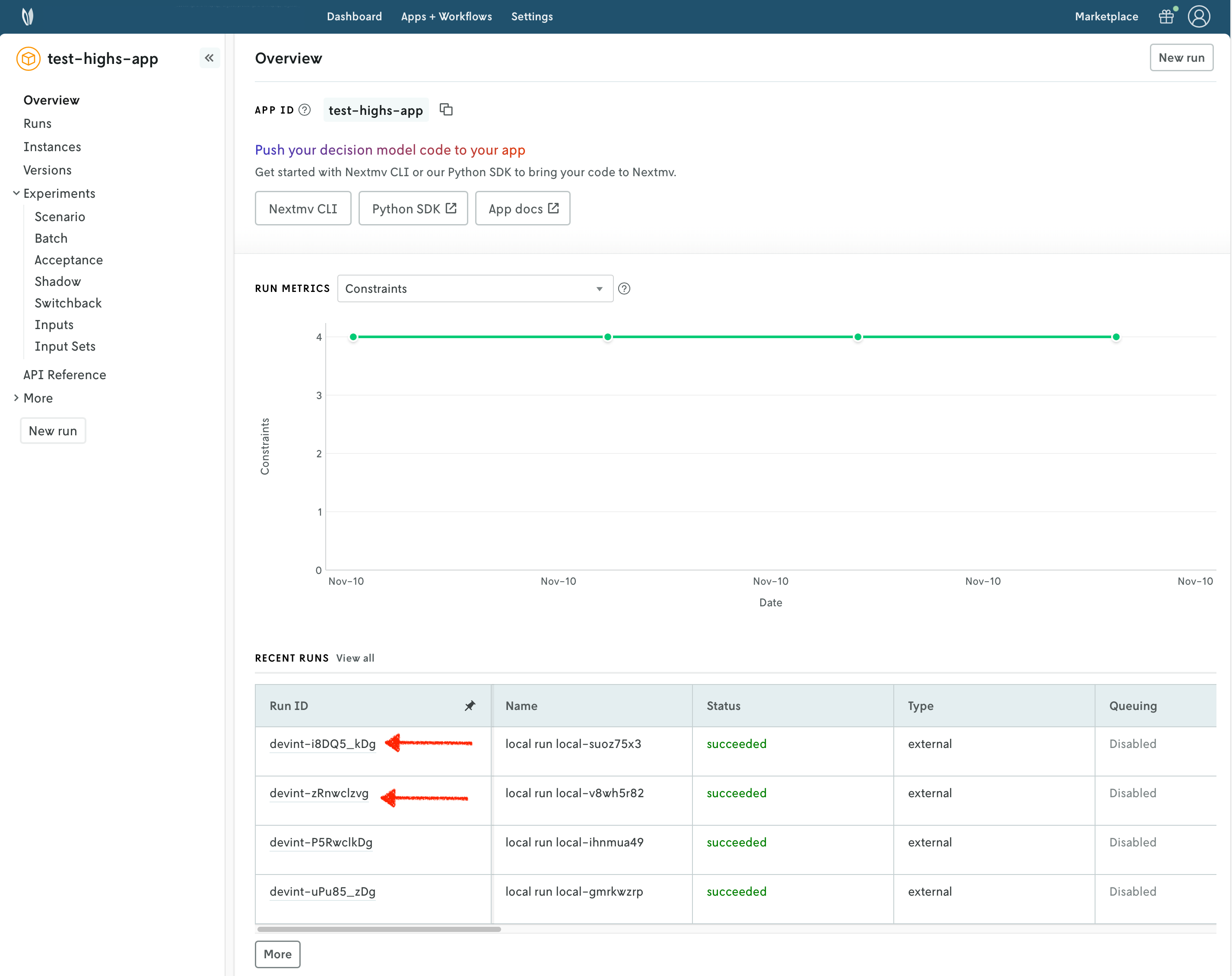
You can go to the apps section in the Nextmv Console where you will see your application. You can click on it to see more details. In the overview of the app you will see the most recent runs. Click on any of the runs that were tracked.
Runs

You can use the Nextmv Console to browse the information of the run:

  • Summary
  • Output
  • Input
  • Metadata
  • Logs

Nextmv is built for collaboration, so you can invite team members to your account and share run URLs.
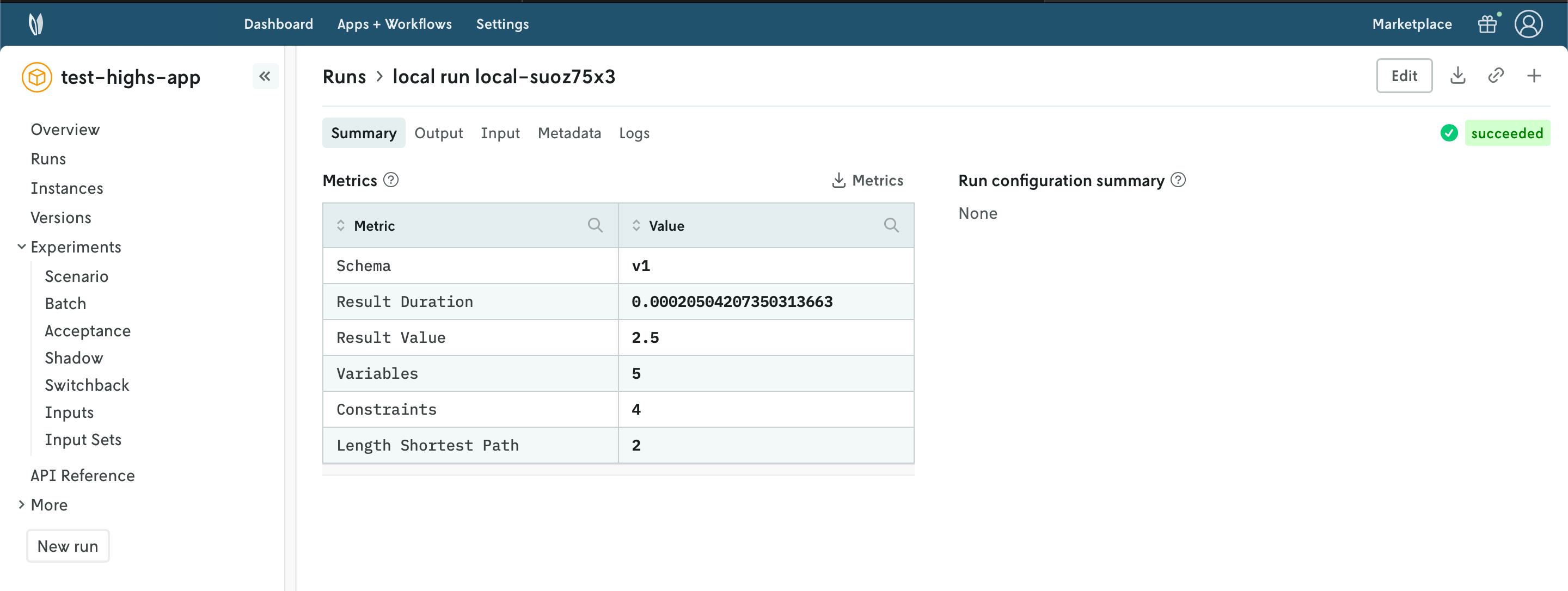
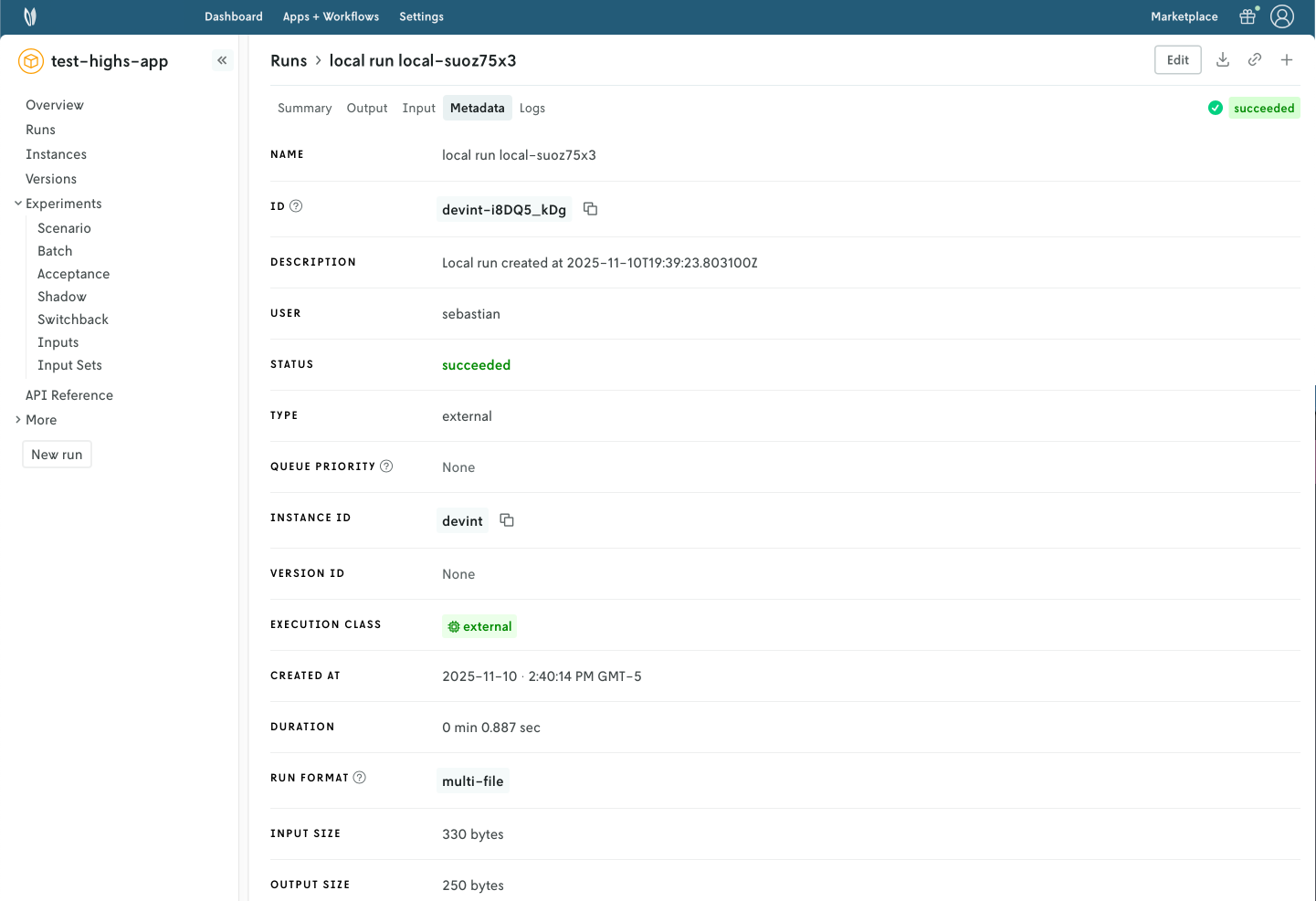
Run summary Run metadata

10. Subscribe to a Nextmv Plan

If you already have an active Nextmv Plan, you can skip this step.

If a Nextmv member provides different instructions for activating a Nextmv Plan, please follow those instructions instead.

Upgrade your account and subscribe to a Nextmv Plan. In the Nextmv Console, you can do this from the Upgrade button or from the Settings > Plan section.

Running a custom application remotely in Nextmv Cloud requires a paid plan. However, plans come with a 14-day free trial that can be canceled at any time. You can upgrade your account and subscribe to a plan in Nextmv Console by clicking the Upgrade button in the header, or navigating to the Settings-> Plan section. Upgrading to a plan will allow you to complete the rest of the tutorial.
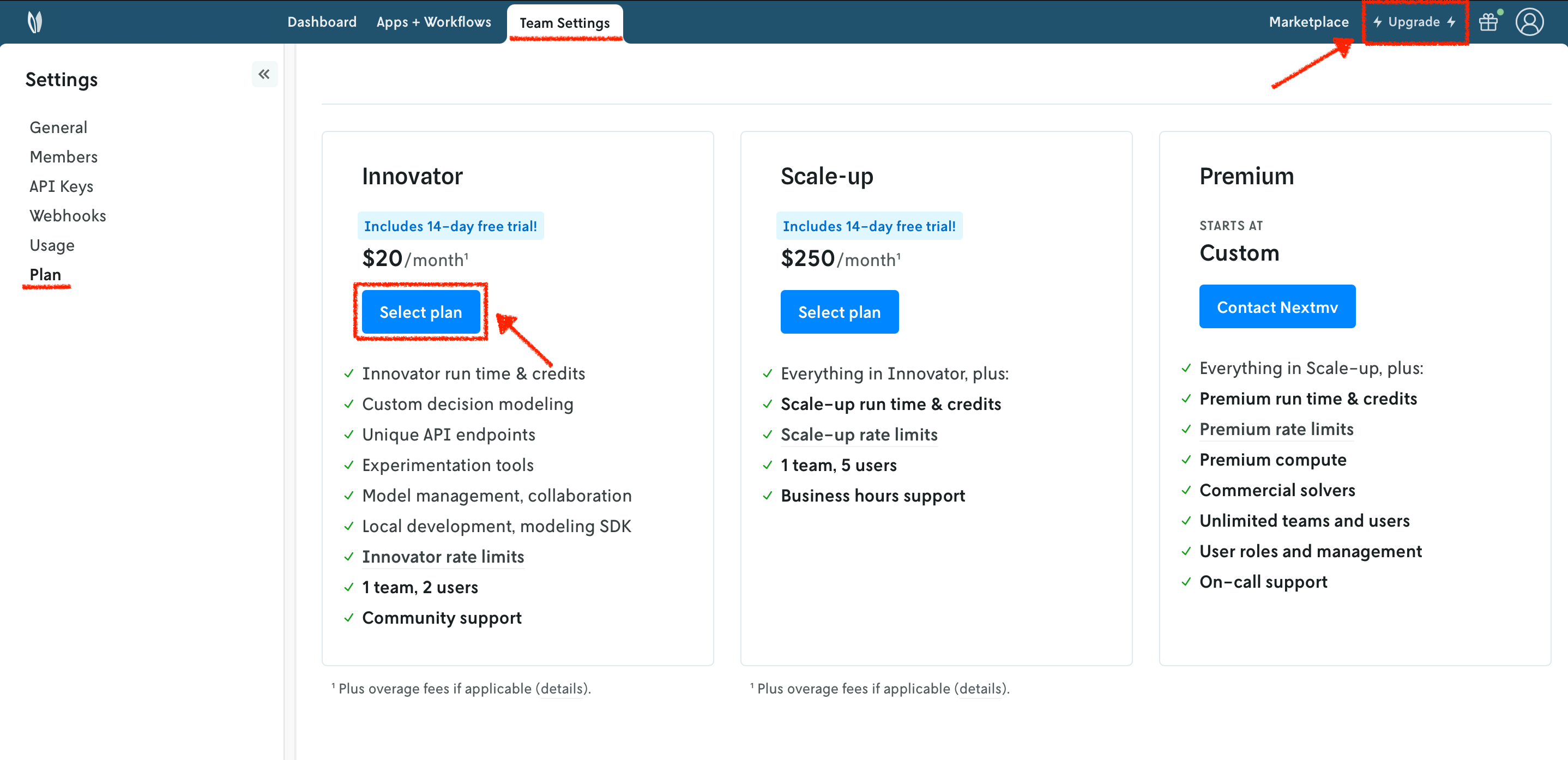
Plans

In the example shown below, you will be subscribing to an Innovator plan. A pop-up window will appear, and you will need to fill in your payment details.
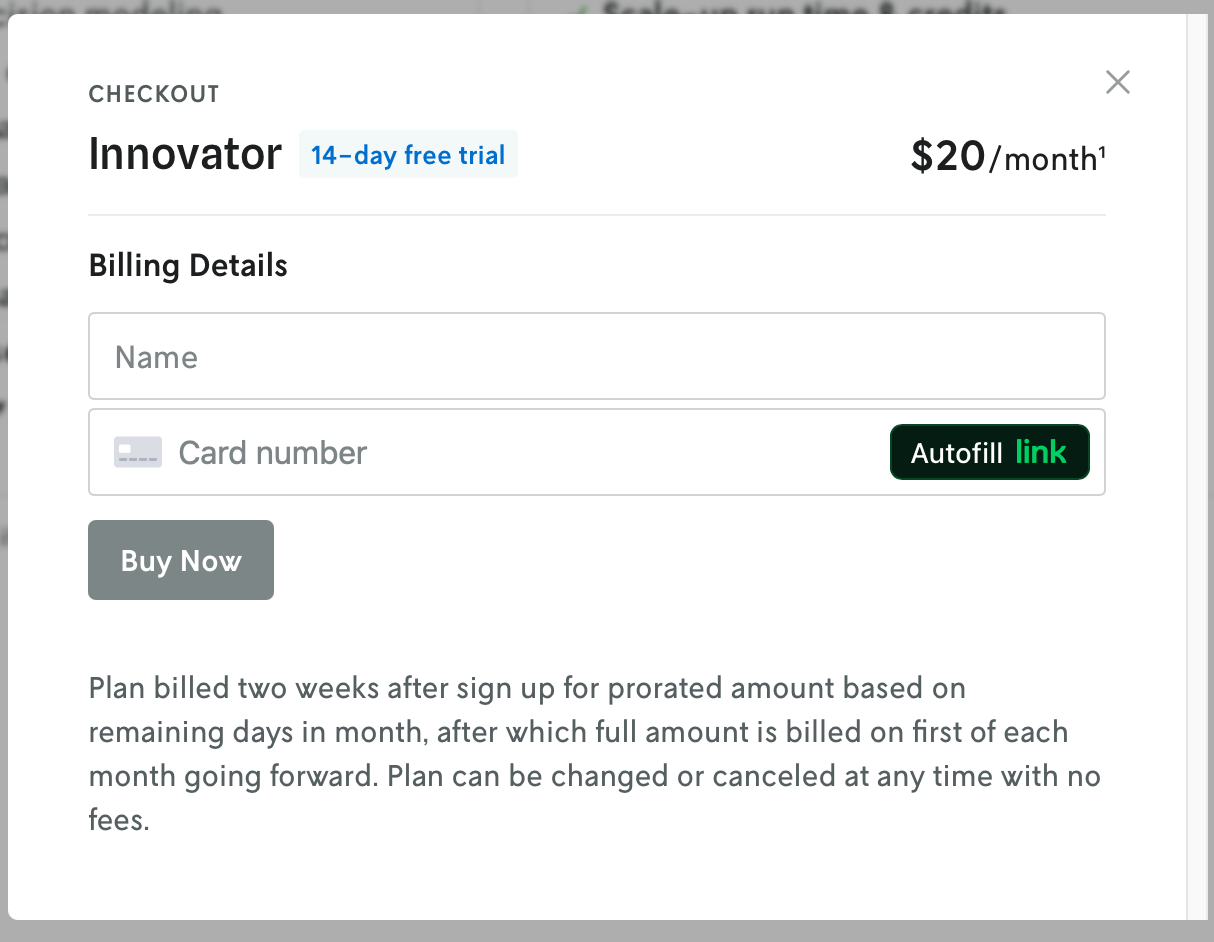
Innovator

Once your account has been upgraded, you will see an active plan in your account.
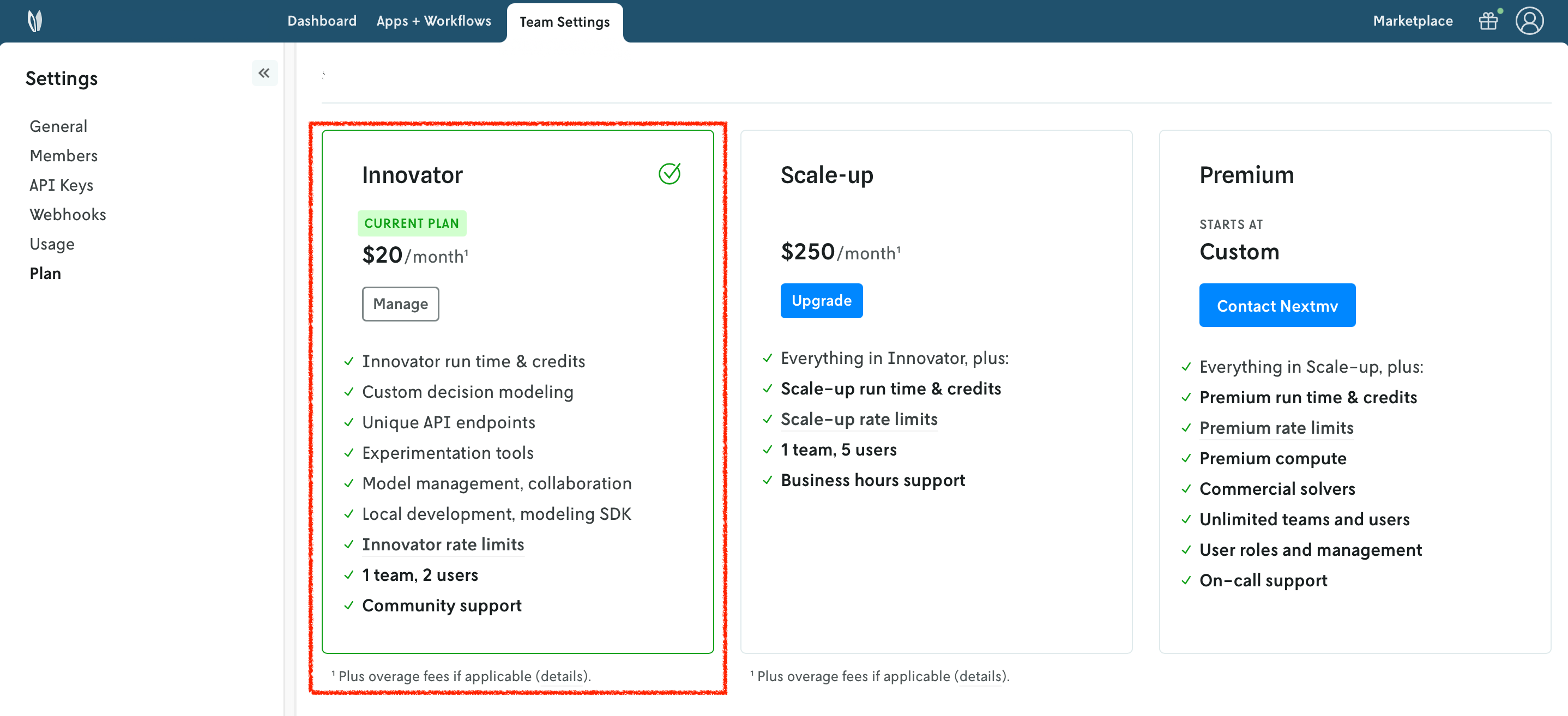
Active plan

11. Push your Nextmv Application

So far, your application has run locally. You are going to push your app to Nextmv Cloud. Once an application has been pushed, you can run it remotely, perform testing, experimentation, and much more. Pushing is the equivalent of deploying an application, this is, taking the executable code and sending it to Nextmv Cloud.

Create another script, which you can name app5.py, or use another cell in the Jupyter notebook. Copy and paste the following code into it, making sure you use the correct dirpath for the Manifest.from_yaml method and app_dir for the push method:

import os

import nextmv
from nextmv import cloud

# Instantiate the cloud application.
client = cloud.Client(api_key=os.getenv("NEXTMV_API_KEY"))
cloud_app = cloud.Application(client=client, id="test-pyomo-app")

# Push the app.
manifest = nextmv.Manifest.from_yaml(dirpath=".")
cloud_app.push(manifest=manifest, app_dir=".", verbose=True)
Copy

This script will push the executable code to the application.

After you run the script, or notebook cell, you should see an output similar to this one, where it shows the app being bundled and pushed to Nextmv Cloud.

$ python app5.py

πŸ’½ Starting build for Nextmv application.
🐍 Bundling Python dependencies.
πŸ“‹ Copied files listed in "app.yaml" manifest.
πŸ“¦ Packaged application (3296 files, 29.10 MiB).
🌟 Pushing to application: "test-highs-app".
πŸ’₯️ Successfully pushed to application: "test-highs-app".
{
  "app_id": "test-highs-app",
  "endpoint": "https://api.cloud.nextmv.io",
  "instance_url": "v1/applications/test-highs-app/runs?instance_id=latest"
}
Copy

Refreshing the overview of the application in the Nextmv Console should show the following:
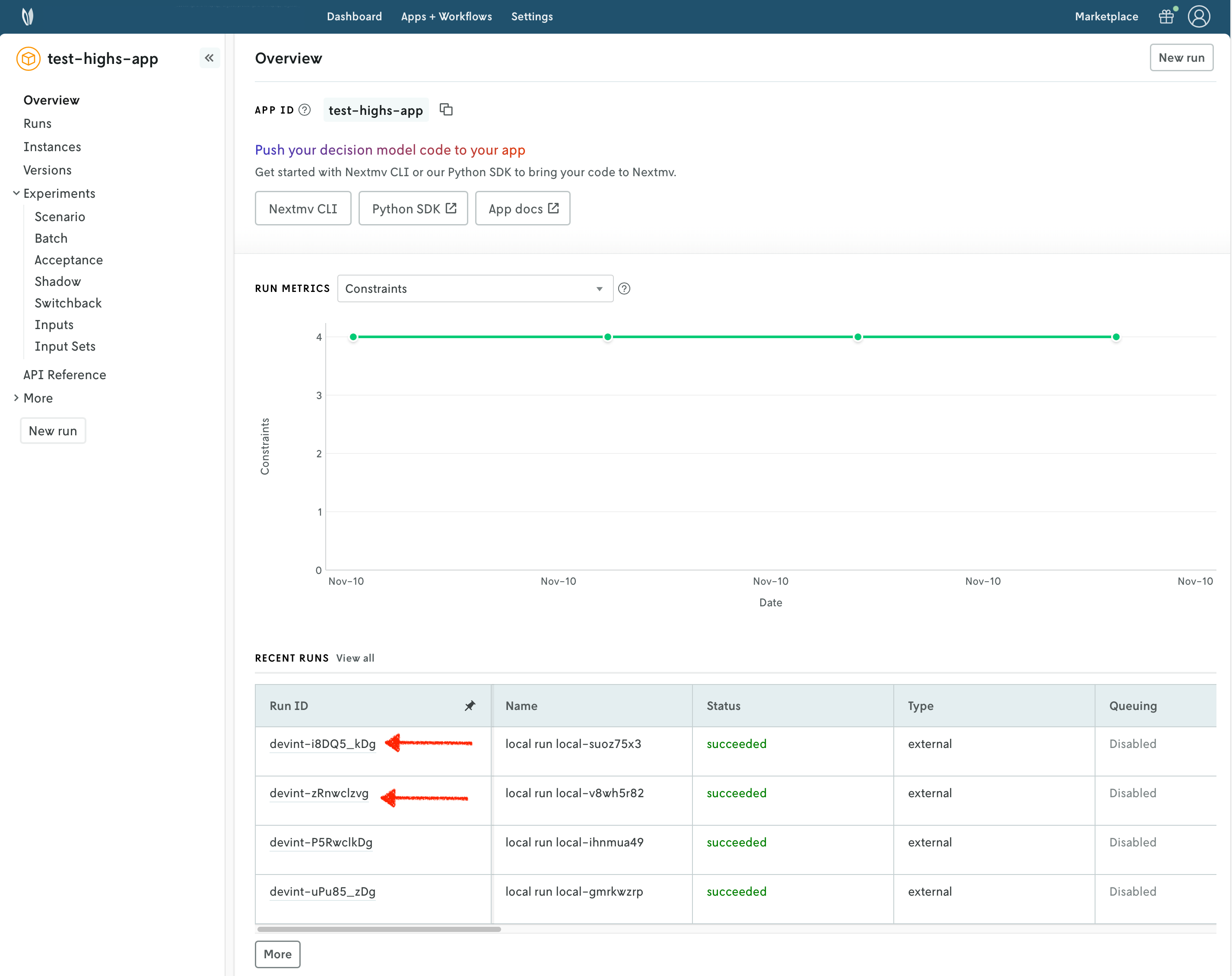
Pushed app

  • There is now a pushed executable.
  • There is an auto-created latest instance, assigned to the executable.

An instance is like the endpoint of the application.

12. Run the Nextmv Application remotely

To run the Nextmv application remotely, you have several options. For this tutorial, we will be using the Nextmv Console and the cloud package of the Python SDK.

In the Nextmv Console, in the app overview page:

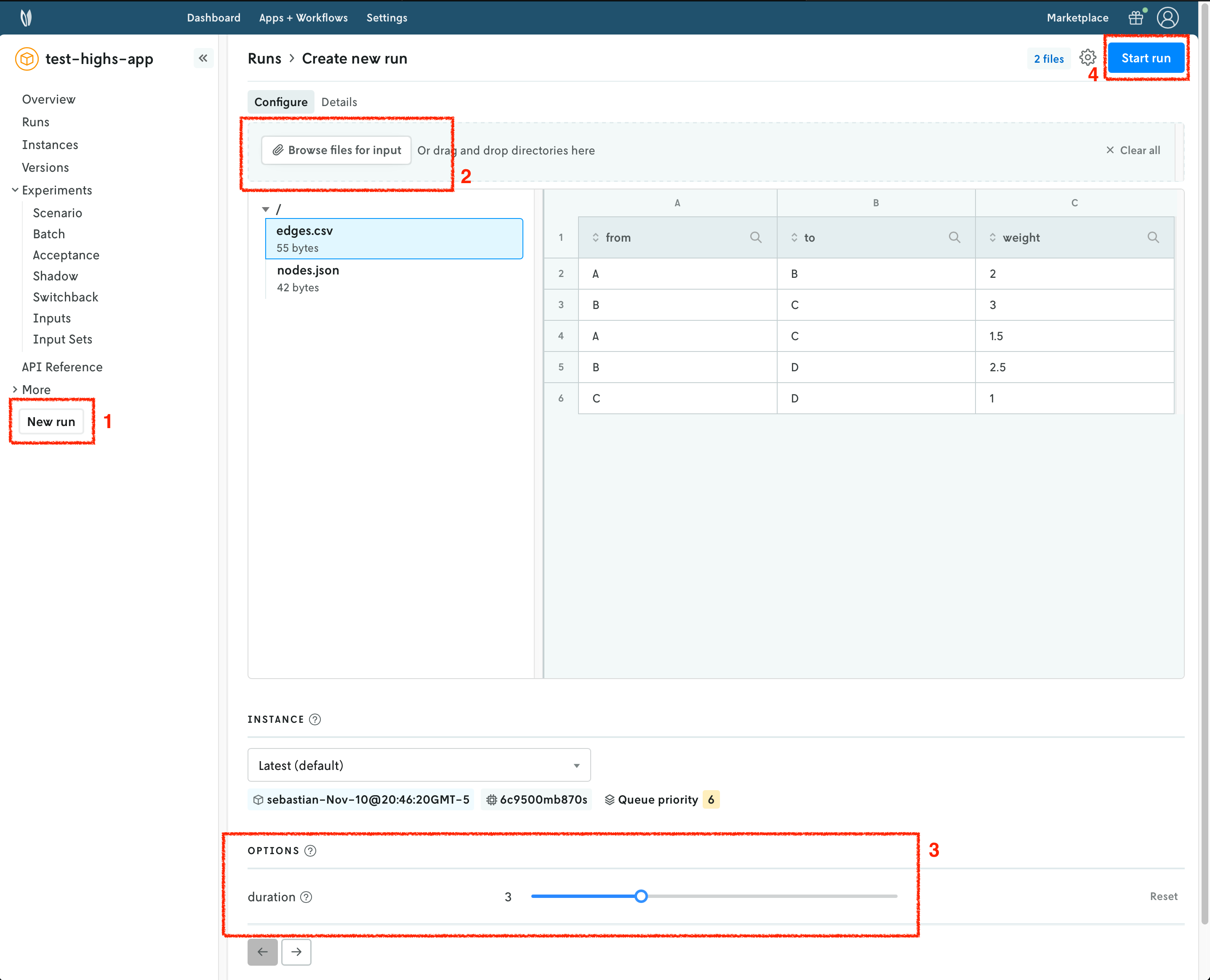
  1. Press the New run button.
  2. Drop the data files that you want to use. You will get a preview of the data.
    • For Pyomo, use the problem.json file.
    • For HiGHS, use both the nodes.json and edges.csv files.
  3. Configure your run according to the options that are set in the app.yaml manifest.
    • For Pyomo, you can configure the duration and solver.
    • For HiGHS, you can configure the duration.
  4. Start the run.

New run Pyomo New run HiGHS

Navigate around to visualize the results of the run. This should look, and feel, like the external (local) run you tracked in a previous step. In this case, the run was executed on Nextmv Cloud.

Alternatively, you can run your Nextmv Application using the Python SDK. Create another script, which you can name app6.py, or use another cell in the Jupyter notebook. Copy and paste the following code into it:

import os

import nextmv
from nextmv import cloud

# Instantiate the cloud application.
client = cloud.Client(api_key=os.getenv("NEXTMV_API_KEY"))
cloud_app = cloud.Application(client=client, id="test-pyomo-app")

# Run the app.
input = nextmv.load(path=os.path.join("inputs", "problem.json"))
run_result = cloud_app.new_run_with_result(
    input=input.data,  # Data is loaded from memory.
    run_options={
        "duration": "3",
        "solver": "scip",
    },
)
nextmv.write(run_result)
Copy

This script will start a new run on Nextmv Cloud, wait for it to complete, and print the results. After you run the script, or notebook cell, you should see an output similar to this one:

$ python app6.py

{
  "description": "",
  "id": "latest-fEh2_xWDR",
  "metadata": {
    "application_id": "test-pyomo",
    "application_instance_id": "latest",
    "application_version_id": "",
    "created_at": "2025-12-02T17:36:27Z",
    "duration": 22020.0,
    "error": "",
    "input_size": 462.0,
    "output_size": 667.0,
    "format": {
      "input": {
        "type": "json"
      },
      "output": {
        "type": "json"
      }
    },
    "status_v2": "succeeded",
    "status": "succeeded",
    "statistics": {
      "schema": "v1",
      "result": {
        "duration": 0.04,
        "value": 153.675,
        "custom": {
          "variables": 6,
          "constraints": 5,
          "num_edges_used": 3
        }
      }
    }
  },
  "name": "",
  "user_email": "sebastian@nextmv.io",
  "console_url": "https://cloud.nextmv.io/app/test-pyomo/run/latest-fEh2_xWDR?view=details",
  "output": {
    "options": {
      "duration": 3.0,
      "solver": "scip",
      "input": "",
      "output": ""
    },
    "solution": {
      "shipments": [
        {
          "from": "seattle",
          "to": "chicago",
          "quantity": 300.0
        },
        {
          "from": "san-diego",
          "to": "new-york",
          "quantity": 325.0
        },
        {
          "from": "san-diego",
          "to": "topeka",
          "quantity": 275.0
        }
      ]
    },
    "statistics": {
      "result": {
        "duration": 0.04,
        "value": 153.675,
        "custom": {
          "variables": 6,
          "constraints": 5,
          "num_edges_used": 3
        }
      },
      "schema": "v1"
    },
    "assets": []
  }
}
Copy

13. Perform a scenario test

We are going to take full advantage of the Nextmv Platform by creating a scenario test. Scenario tests are generally used as an exploratory test to understand the impacts to business metrics (or KPIs) on situations such as:

  • Updating a model with a new feature, such as an additional constraint.
  • Comparing how the same model performs in different conditions, such as low demand vs. high demand.
  • Doing a sensitivity analysis to understand how the model behaves when changing a parameter.

Start by creating an input set. As the name suggests, it is a set of inputs, and it serves as a base so that we can perform runs varying one or more configurations (options). To create an input set, you have several options, like using the cloud package of the Python SDK. For this tutorial, we will be using the Nextmv Console. You may follow these steps for both examples.

  1. Navigate to the Input sets section.
  2. Set a name for your input set.
  3. Use the Instance + date range creation type given that we already have a few runs on the latest instance.
  4. Create the input set.

Input set

Another option for creating the input set is using the Python SDK. Create another script, which you can name app7.py, or use another cell in the Jupyter notebook. Copy and paste the following code into it:

import os
from datetime import datetime, timedelta, timezone

import nextmv
from nextmv import cloud

# Instantiate the cloud application.
client = cloud.Client(api_key=os.getenv("NEXTMV_API_KEY"))
cloud_app = cloud.Application(client=client, id="test-pyomo-app")

# Create the input set.
input_set = cloud_app.new_input_set(
    id="input-set-2",
    name="Input Set 2",
    instance_id="latest",
    start_time=datetime.now(timezone.utc) - timedelta(days=1),
    end_time=datetime.now(timezone.utc),
)
nextmv.write(input_set)
Copy

This script will create a new input set. After you run the script, or notebook cell, you should see an output similar to this one:

$ python app7.py

{
  "app_id": "test-highs-app",
  "created_at": "2025-12-02T17:58:18.176205Z",
  "description": "",
  "id": "input-set-2",
  "input_ids": [
    "latest-fEh2_xWDR",
    "latest-tpymlxZvR"
  ],
  "name": "Input Set 2",
  "updated_at": "2025-12-02T17:58:18.176205Z",
  "inputs": []
}
Copy

Once your input set has been created, we are going to create a scenario test. Similarly to runs, and input sets, you have several options to achieve this. We will continue to use the Nextmv Console and the cloud package of the Python SDK in this tutorial. You may follow these steps for both examples.

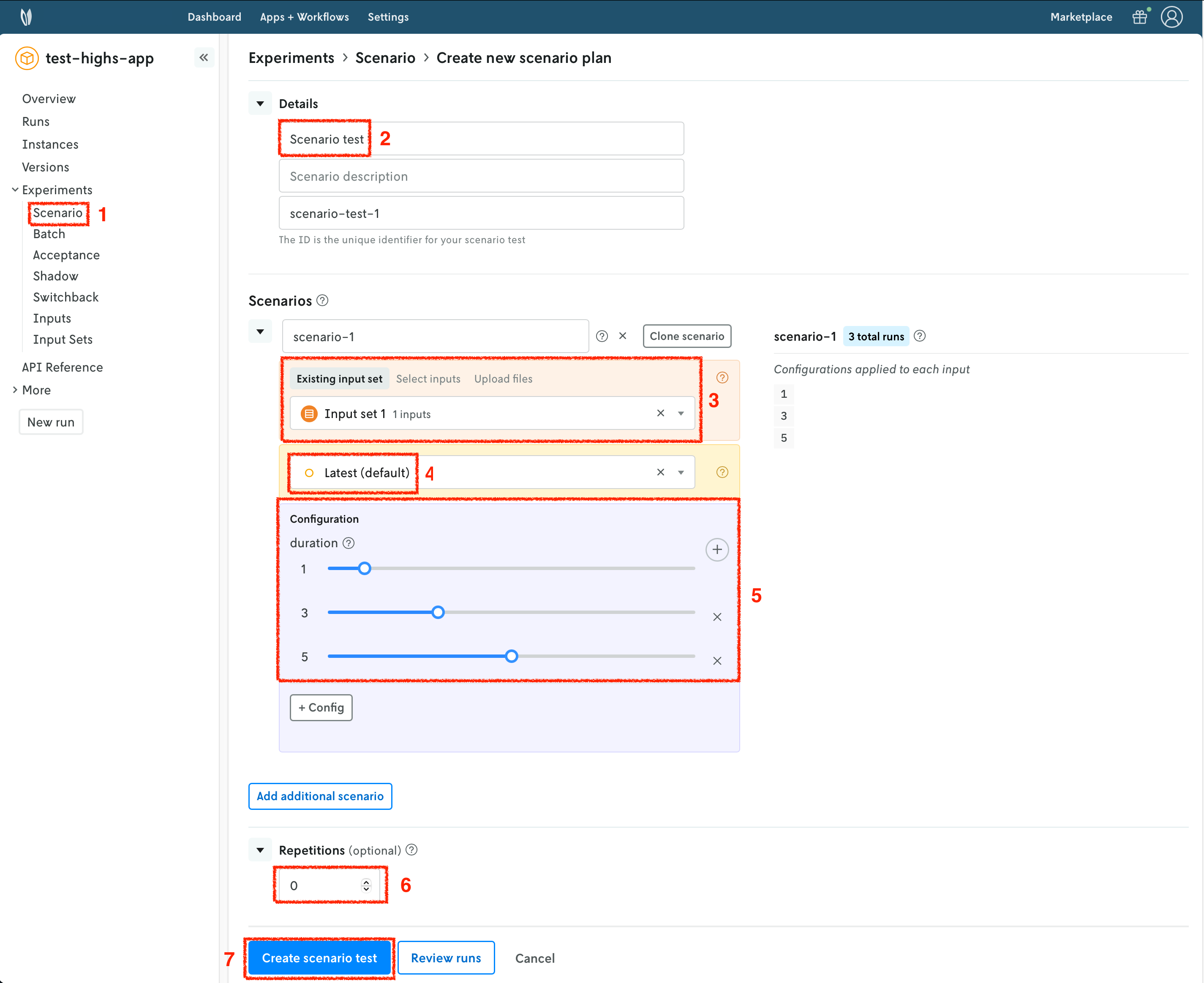
  1. Navigate to the Scenario section.
  2. Set a name for your scenario test.
  3. Select the input set you just created in the previous step.
  4. Select the latest instance.
  5. Create configuration combinations, which will be factored in to create the scenarios.
    • For Pyomo, we are setting duration to be 1, 3, and 5 seconds; and for solver we are comparing the three supported solvers: glpk, scip and cbc.
    • For HiGHS, we are setting duration to be 1, 3, and 5 seconds.
  6. Optionally, you may configure repetitions. These are useful when the results are not deterministic.
  7. Create the scenario test. Review and confirm the number of scenarios that will be created.

Scenario test Pyomo Scenario test HiGHS

Once all the runs in the scenario test are completed, you can visualize the result of the test. A pivot table is provided to create useful comparisons of your metrics (statistics) across the scenario test runs.
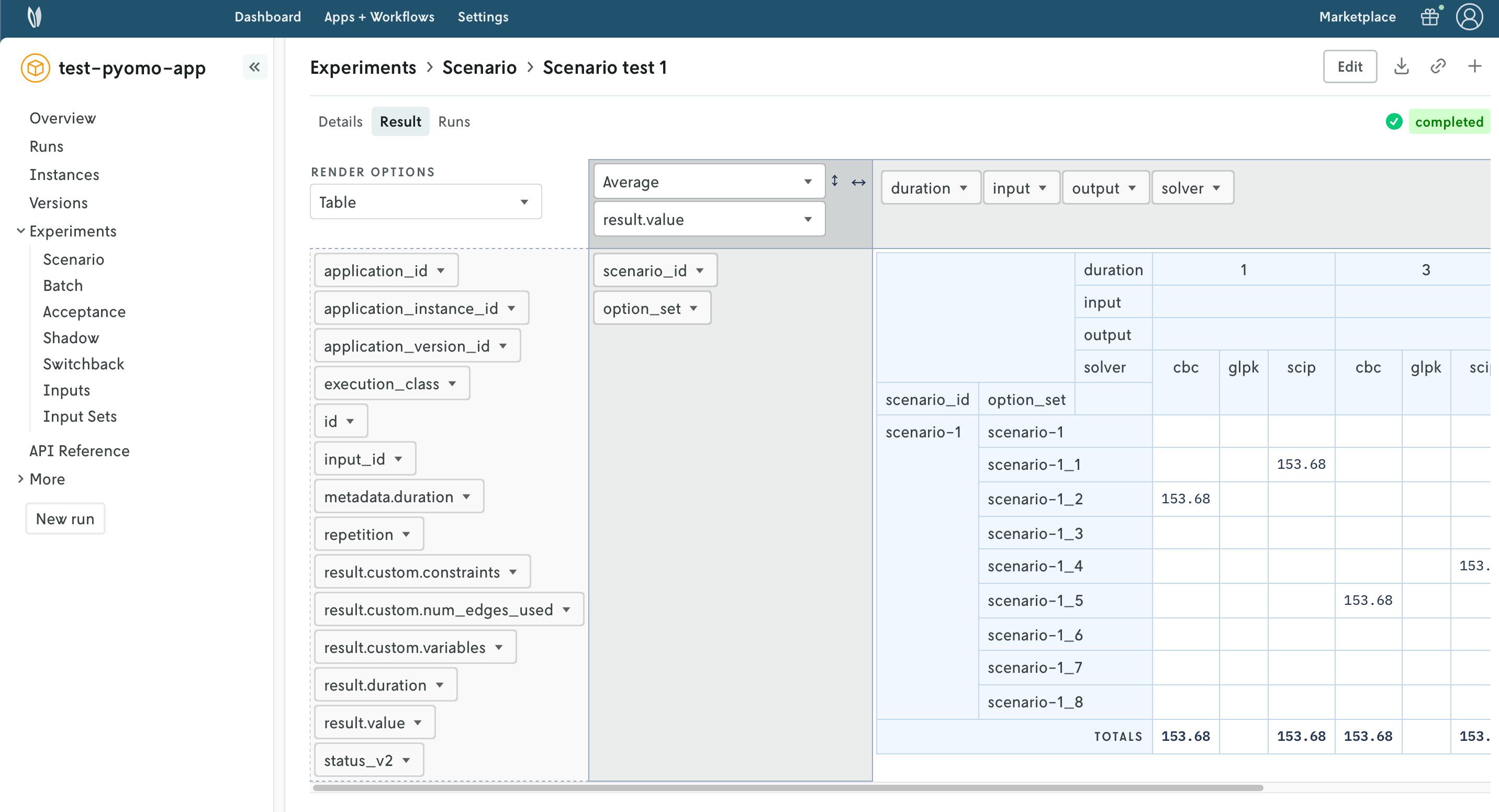
Scenario test result

As an alternative, you may create the scenario test using the Python SDK. Create another script, which you can name app8.py, or use another cell in the Jupyter notebook. Copy and paste the following code into it:

import os

from nextmv import cloud

# Instantiate the cloud application.
client = cloud.Client(api_key=os.getenv("NEXTMV_API_KEY"))
cloud_app = cloud.Application(client=client, id="test-pyomo-app")

# Create the scenario test.
scenario_test_id = cloud_app.new_scenario_test(
    id="scenario-test-2",
    name="Scenario Test 2",
    scenarios=[
        cloud.Scenario(
            scenario_input=cloud.ScenarioInput(
                scenario_input_type=cloud.ScenarioInputType.INPUT_SET,
                scenario_input_data="input-set-2",
            ),
            instance_id="latest",
            configuration=[
                cloud.ScenarioConfiguration(
                    name="duration",
                    values=["1", "3", "5"],
                ),
                cloud.ScenarioConfiguration(
                    name="solver",
                    values=["glpk", "scip", "cbc"],
                ),
            ],
        ),
    ],
)
print(f"Created scenario test with ID: {scenario_test_id}")
Copy

This script will create a new scenario test. After you run the script, or notebook cell, you should see an output similar to this one:

$ python app8.py

Created scenario test with ID: scenario-test-2
Copy

πŸŽ‰πŸŽ‰πŸŽ‰ Congratulations, you have finished this tutorial!

Full tutorial code

You can find the consolidated code examples used in this tutorial in the tutorials GitHub repository. The connect-your-model-python dir contains all the code that was shown in this tutorial.

For each of the examples, you will find two directories:

  • original: the original example without any modifications.
  • nextmv-ified: the example converted into a Nextmv application.

Go into each directory for instructions about running the decision model.

Page last updated

Go to on-page nav menu