⌛️ Approximate time to complete: 20 min.
In this tutorial you will learn how to set up a CI/CD decision workflow using Nextmv and GitHub Actions. More specifically, this tutorial will guide you through setting up an acceptance test workflow. Complete this tutorial if you:
- Are comfortable using the terminal.
- Are familiar with GitHub and GitHub Actions.
- Want to learn how to automate testing and experimentation using CI/CD workflows.
In short, we will show you how to get the following GitHub workflow up and running:
At a high level, this tutorial will go through the following steps:
- Clone a community app locally.
- Push the model to Nextmv Cloud.
- Set up prerequisites for running an acceptance test.
- Run an acceptance test using a CI/CD workflow in GitHub Actions.
Let’s dive right in 🤿.
1. Create an account
The full suite of benefits starts with a Nextmv Cloud account.
- Visit the Nextmv Console to sign up for an account at https://cloud.nextmv.io.
- Verify your account.
- You’ll receive an email asking to verify your account.
- Follow the link in that email to sign in.
- Log in to your account. The Nextmv Console is ready to use!
Once you have logged in to your account, you need to fetch your API key. You can do so from your settings.

2. Subscribe to a Nextmv Plan
If you already have an active Nextmv Plan, you can skip this step.
If a Nextmv member provides different instructions for activating a Nextmv Plan, please follow those instructions instead.
Running a custom application remotely in Nextmv Cloud requires a paid plan. However, plans come with a 14-day free trial that can be canceled at any time. You can upgrade your account and subscribe to a plan in Nextmv Console by clicking the Upgrade button in the header, or navigating to the Settings → Plan section. Upgrading to a plan will allow you to complete the rest of the tutorial.
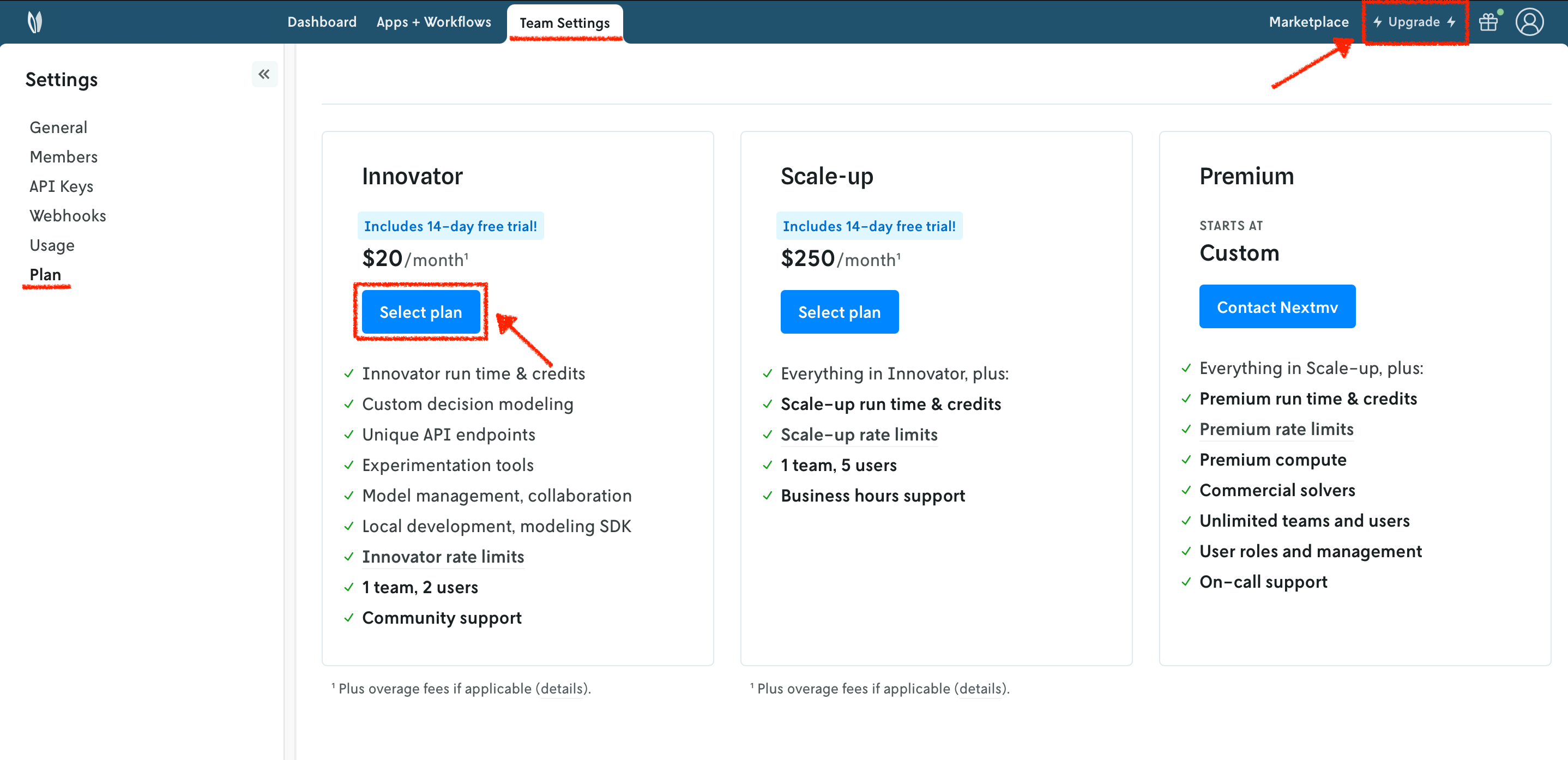
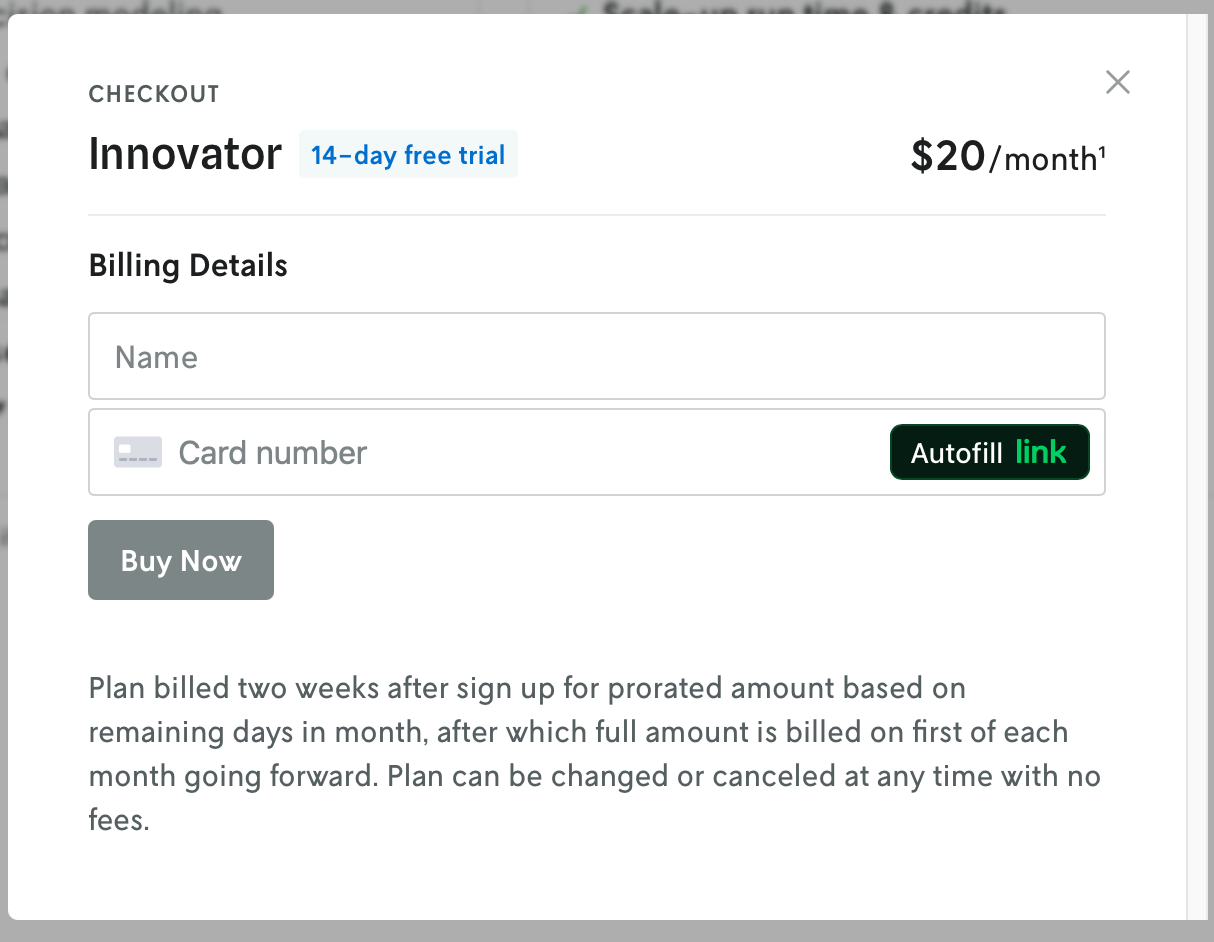
In the example shown, you will be subscribing to an Innovator plan. A pop-up window will appear, and you will need to fill in your payment details.
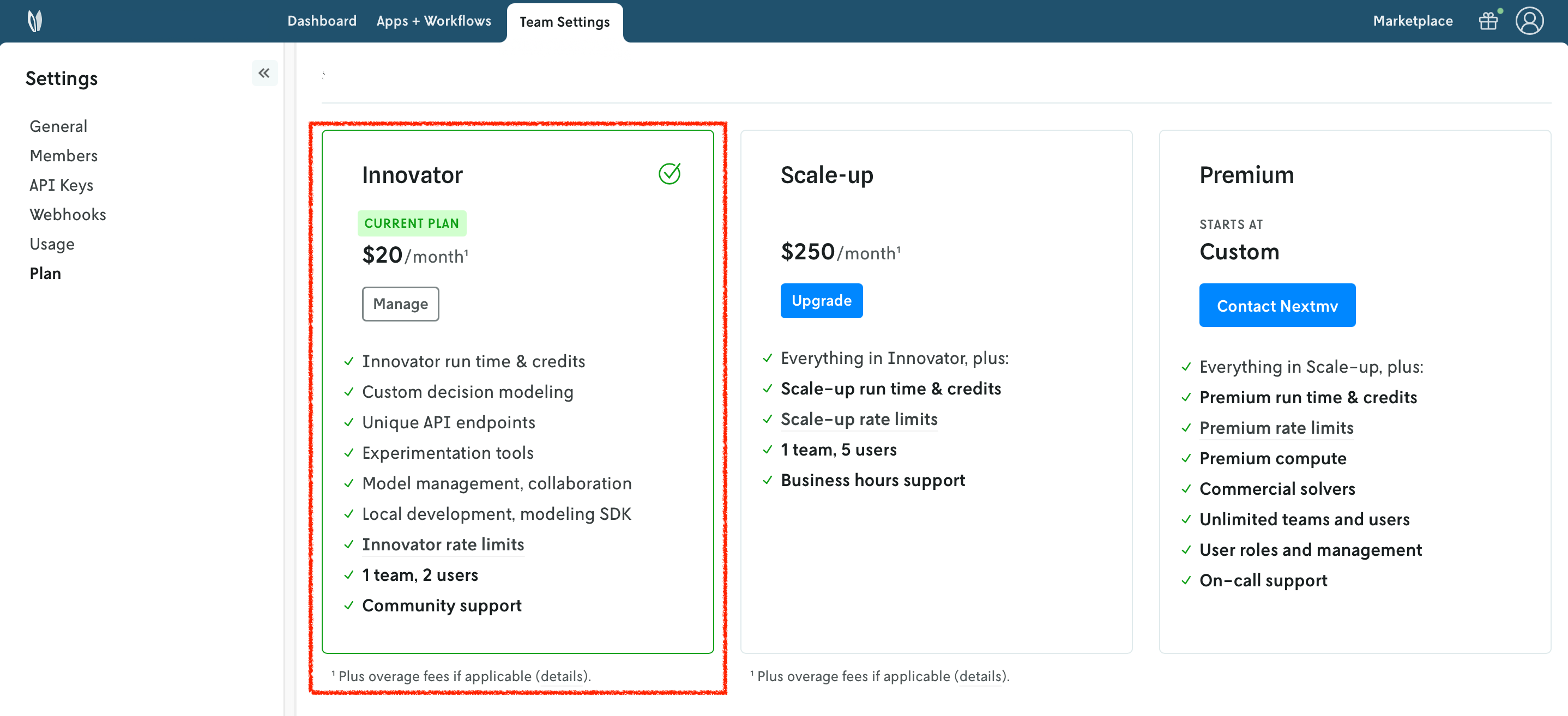
Once your account has been upgraded, you will see an active plan in your account.
3. Install the Nextmv CLI
Install the Nextmv CLI. Python >=3.10 is required. Install using the Python package manager of your choice. The CLI is available for macOS, Linux, and Windows.
After installing, you may need to re-open/refresh your terminal. Then, configure Nextmv CLI with your account:
To check if the installation was successful, run the following command to show the help menu:
4. Clone a community app
Community apps are a great place to explore pre-built decision apps. To work with community apps you have two options:
- Clone the GitHub repository locally.
- Use the Nextmv CLI to clone a specific community app.
This tutorial will use the second option. We will be using the python-nextroute community app, which solves a Vehicle Routing Problem (VRP) with Nextroute and Python. To clone this community app, run the following command:
This command is saved as app1.sh in the full tutorial code.
Once the app has been cloned, you should see a structure similar to the following:
5. Create your Nextmv Cloud application
So, what is a Nextmv application? A Nextmv application is an entity that contains a decision model as executable code. An application can make a run by taking an input, executing the decision model, and producing an output. An application is defined by its code, and a configuration file named app.yaml, known as the "app manifest".
Think of the app as a shell, or workspace, that contains your decision model code, and provides the necessary structure to run it.
Run the following command to create an application with the ID nextroute.
This will create a new application in Nextmv Cloud. This command is saved as app2.sh in the full tutorial code. You can also create applications directly from Nextmv Console.
You can go to the Apps section in the Nextmv Console where you will see your applications.

6. Push your Nextmv application
You are going to push your app to Nextmv Cloud. Once an application has been pushed, you can run it remotely, perform testing, experimentation, and much more. Pushing is the equivalent of deploying an application, this is, taking the executable code and sending it to Nextmv Cloud.
Deploy your app (push it) to Nextmv Cloud. Note that this command is being executed outside (one directory above) of the python-nextroute directory.
This command is saved as app3.sh in the full tutorial code. The --version-no option is used to avoid prompting you into creating a version and instance, which we will cover in the next steps.
You can go to the Apps section in the Nextmv Console where you will see your application. You can click on it to see more details. Once you are in the overview of the application in the Nextmv Console, it should show the following:
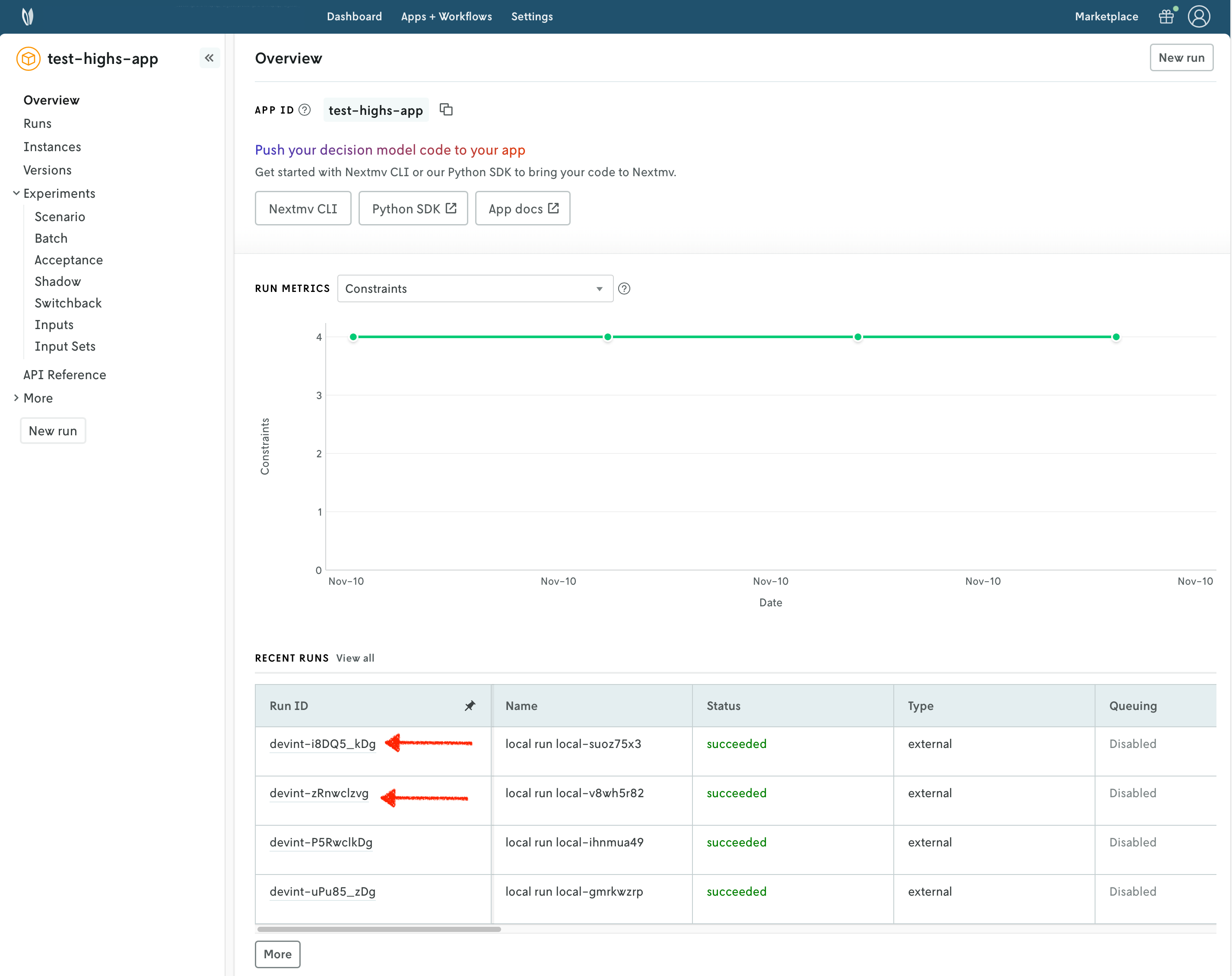
- There is now a pushed executable.
- There is an auto-created
latestinstance, assigned to the executable.
An instance is like the endpoint of the application.
7. Create an initial version and the instances
We are going to create a version, which is the equivalent of tagging the executable code that was pushed. Think of a version as a Git tag, a snapshot of the code at a given point in time.
Run the following command:
This command is saved as app4.sh in the full tutorial code.
Using this version, we will now create two instances. You can think of an instance as an endpoint for the application, that uses a version and a certain configuration.
production: our stable instance.staging: our testing instance. With this instance we are going to solve the question: "What happens if I run this application for longer than the default?"
Run the following commands to create these instances:
This command is saved as app5.sh in the full tutorial code. Notice how the staging instance has a custom option set.
8. Run remotely and create an input set
To create an input set, we are going to leverage a remote run. We can execute runs against a specific instance, which in this case is going to be staging. Run the following command. Note that this command is being executed outside (one directory above) of the python-nextroute directory.
This command is saved as app6.sh in the full tutorial code.
An input set is a collection of inputs. One way to create an input set is to use the past runs of an instance. In this case, we are going to create an input set based on the runs of the staging instance. Of course, you should expect a single run (which is the one we just created), but in a real scenario you would have multiple runs to create a more robust input set.
This command is saved as app7.sh in the full tutorial code.
Now we have everything we need to run an acceptance test.
9. Creating an acceptance test
Before setting up the GitHub Actions workflow, let's run an acceptance test manually to see how it works. An acceptance test is a type of test that compares two instances of the same application, a candidate and a baseline, using a defined set of metrics and inputs. We are testing business metrics, based on pre-defined statistics, to accept or reject a candidate instance.
Run the following command:
This command is saved as app8.sh in the full tutorial code. Notice the following:
- We are comparing the baseline
productioninstance against the incoming candidatestaginginstance. You would always assign new code to a new version, and you would update thestaginginstance to use that new version. - Specifically, in this case we are comparing the default solve duration against a longer solve duration of 20 seconds.
- We use the input set that we created in the previous step. Once an input set is created, you can reuse it for multiple acceptance tests.
- The only metric we are comparing is the value of the result. The acceptance test passes if the
meanof the candidate's result values is less than or equal to themeanof the baseline's result values, with a relative tolerance of 5%.
You can see the results of the acceptance test in the Console, under the Acceptance section of your Nextmv application.
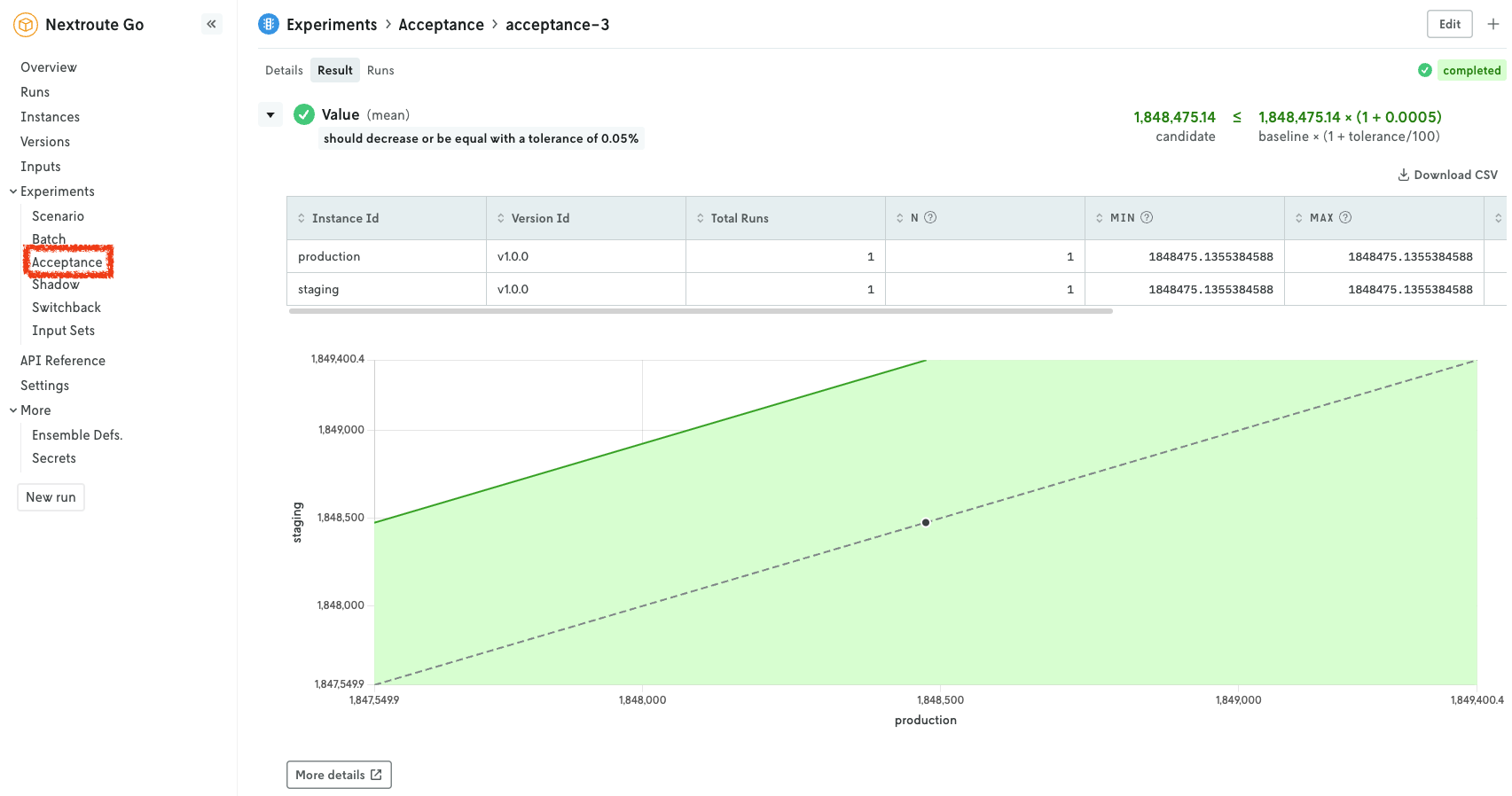
The conclusion for this very simple test is that the staging instance is performing better than the production instance because the metric did indeed decrease.
10. Set up a CI/CD decision workflow in GitHub Actions
Instead of running acceptance tests manually, it is a better idea to automate this and other experiments and tests using a CI/CD workflow. This way, you can ensure that every time you push new code, the necessary tests and experiments are run automatically.
In your GitHub repository, create a new workflow file: .github/workflows/nextmv.yml. Add the following content to that file:
This file is saved as .github/workflows/nextmv.yml in the full tutorial code.
In this workflow we are doing the following:
- Whenever there is a push to the
develop(main) branch, we run this workflow. - We check out the code of the repository.
- We use the Nextmv GitHub Action to set up the Nextmv CLI. Note that you must set up a secret in your GitHub repository with your Nextmv API key. In the workflow, we are referencing that secret as
${{ secrets.NEXTMV_API_KEY }}. - We push the code of the
python-nextrouteapp to Nextmv Cloud, create a new version, and update thestaginginstance to use that new version. Remember how this was all done manually before? - The
working-directoryshould point to the location of theapp.yamlmanifest. In this case, as this workflow is hosted in the tutorials repository, the path points to thepython-nextroutedirectory inside theci-cd-github-actionsdirectory. - We create a new acceptance test comparing the
staginginstance to theproductioninstance, using the same metric and input set as before. Notice that we are using the short SHA of the commit as the acceptance test ID to ensure uniqueness.
Your GitHub Actions workflow should be similar to this one, and it should trigger every time you push to the develop branch, like when merging a pull request, for example.
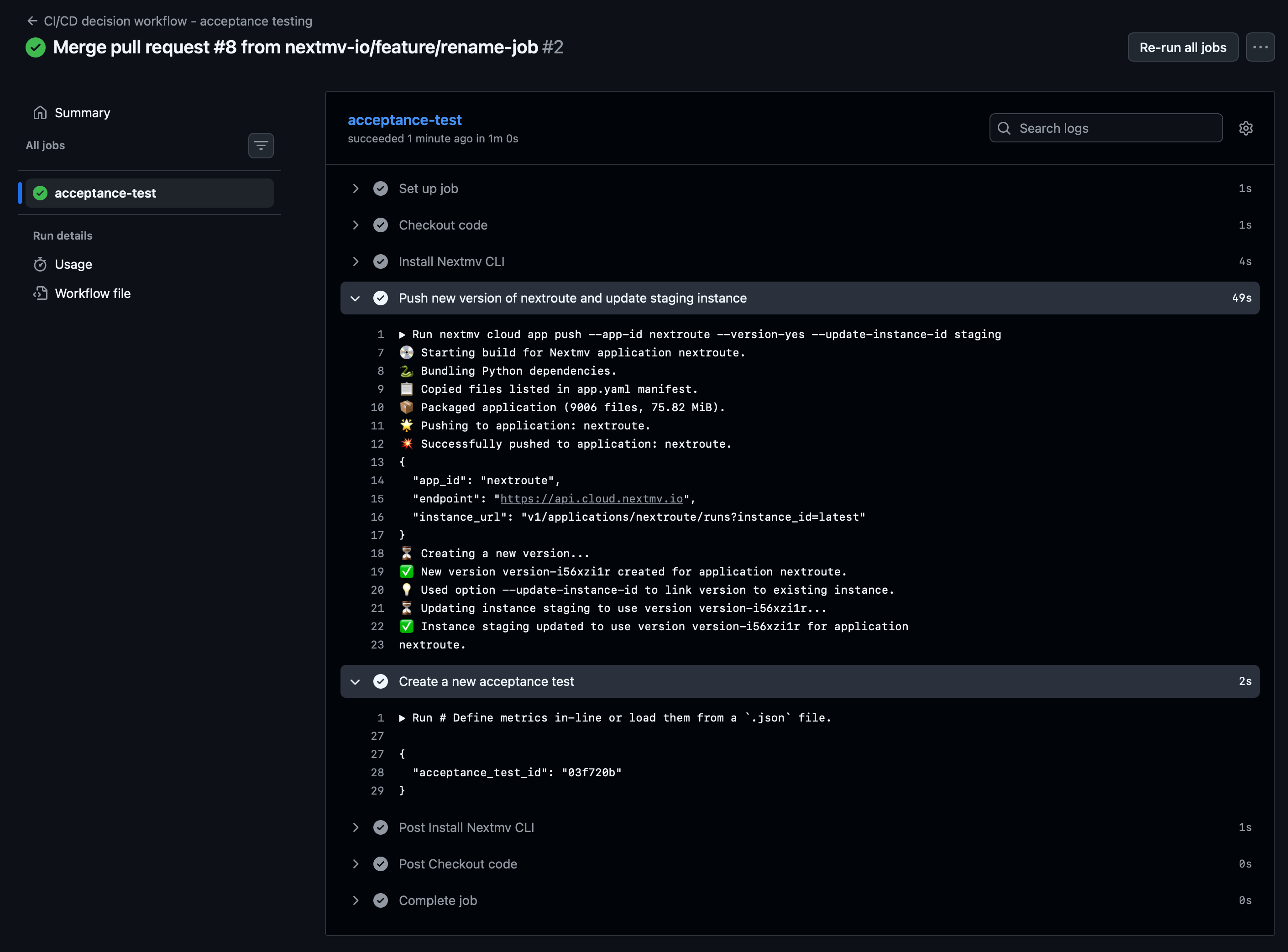
Notice how the version is automatically created with a random ID, linked to the staging instance, and the acceptance test is automatically created with the short SHA of the commit as its ID. If you refresh the list of acceptance tests in the Nextmv Console, you should see the new acceptance test that was just created by the workflow.
🎉🎉🎉 Congratulations, you have finished this tutorial!
Full tutorial code
You can find the consolidated code examples used in this tutorial in the tutorials GitHub repository. The ci-cd-github-actions dir contains all the code that was shown in this tutorial.
Go into the directory for instructions about running the decision model.