⌛️ Approximate time to complete: 10 min.
In this tutorial you will learn how to use community apps to explore new decision models and the Nextmv Platform, from scratch. Complete this tutorial if you:
- Don’t have a pre-existing decision model and you want to explore the Nextmv Platform.
- Are fluent using a language of your preference, such as Python, Java, Go, etc.
Community apps are Nextmv applications that showcase how to solve different decision problems with various languages and solvers. They are a great way to explore new decision models and the Nextmv Platform. You can think of community apps as examples that serve as strong references when building and customizing your own decision models.
At a high level, this tutorial will go through the following steps:
- Clone a community app locally.
- Push the model to Nextmv Cloud.
- Run the model remotely.
- Perform scenario testing.
Let’s dive right in 🤿.
1. Create an account
The full suite of benefits starts with a Nextmv Cloud account.
- Visit the Nextmv Console to sign up for an account at https://cloud.nextmv.io.
- Verify your account.
- You’ll receive an email asking to verify your account.
- Follow the link in that email to sign in.
- Log in to your account. The Nextmv Console is ready to use!
Once you have logged in to your account, you need to fetch your API key. You can do so from your settings.

When you have your API key, it is convenient to save it as an environment variable so that you can use it for the rest of this tutorial.
2. Install the Nextmv CLI
Install the Nextmv CLI. Python >=3.10 is required. Install using the Python package manager of your choice. The CLI is available for macOS, Linux, and Windows.
After installing, configure Nextmv CLI with your account:
To check if the installation was successful, run the following command to show the help menu:
3. Clone a community app
To work with community apps you have two options:
- Clone the GitHub repository locally.
- Use the Nextmv CLI to clone a specific community app.
This tutorial will use the second option.
You can list the available community apps with the following command:
The exact list of community apps, their versions, and the table formatting may vary depending on the version of the CLI and the available community apps at the time.
This command is saved as app1.sh in the full tutorial code.
For this tutorial, we will be using the python-highs-knapsack community app, which solves a knapsack problem using the HiGHS solver and Python. To clone this community app, run the following command:
This command is saved as app2.sh in the full tutorial code.
Once the app has been cloned, you should see a structure similar to the following:
4. Run the community app locally
You can run the executable code locally to verify that everything is working as expected. Each community app comes with a README.md file that contains detailed instructions on how to run the app locally. Let’s follow those steps to run the app.
Make sure you are standing at the root of the cloned community app, where the
app.yamlmanifest is located.Install the required dependencies:
Run the app:
Verify that an
output.jsonfile has been created with the results of the run.
5. Subscribe to a Nextmv Plan
If you already have an active Nextmv Plan, you can skip this step.
If a Nextmv member provides different instructions for activating a Nextmv Plan, please follow those instructions instead.
Running a custom application remotely in Nextmv Cloud requires a paid plan. However, plans come with a 14-day free trial that can be canceled at any time. You can upgrade your account and subscribe to a plan in Nextmv Console by clicking the Upgrade button in the header, or navigating to the Settings → Plan section. Upgrading to a plan will allow you to complete the rest of the tutorial.
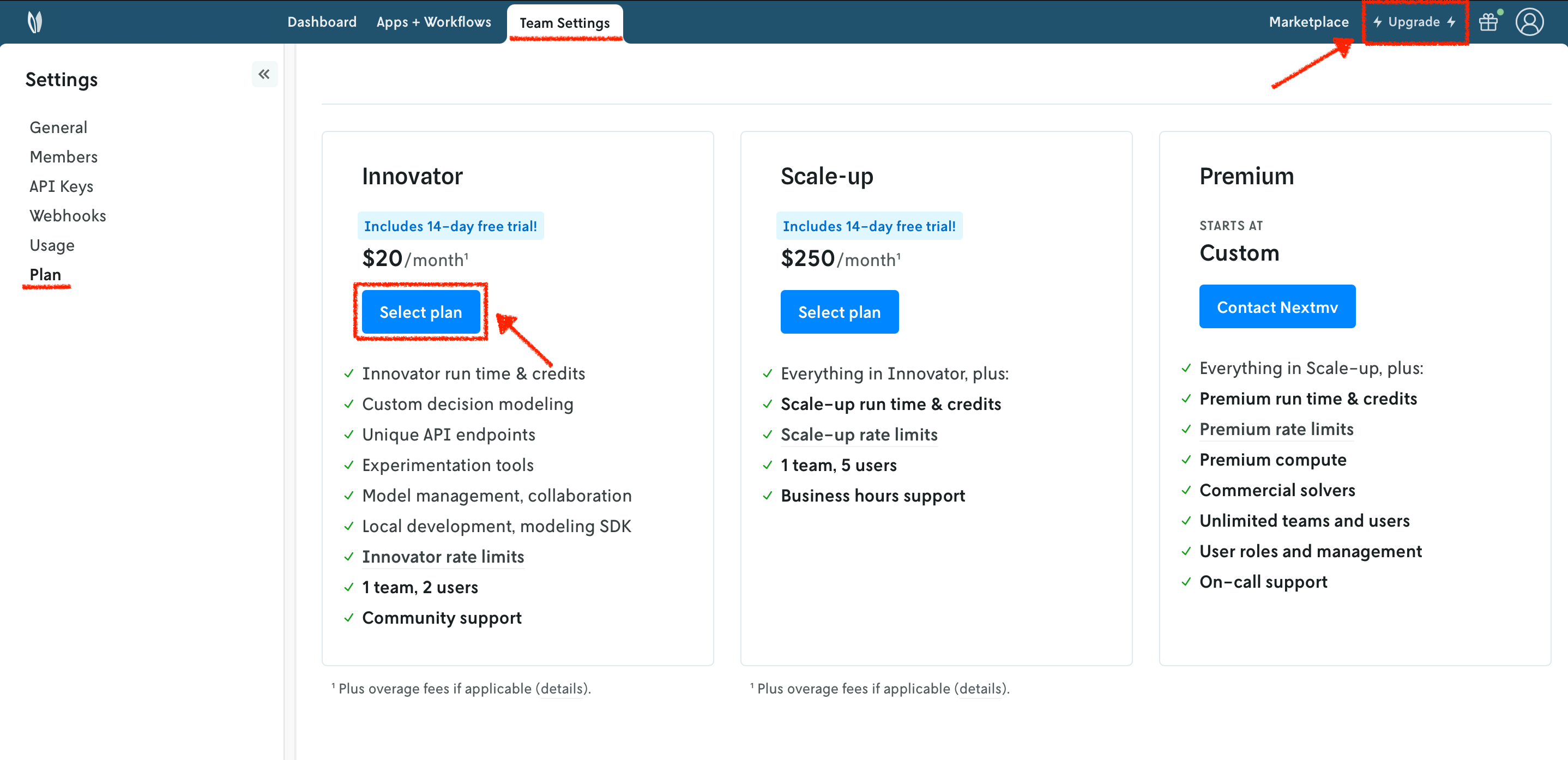
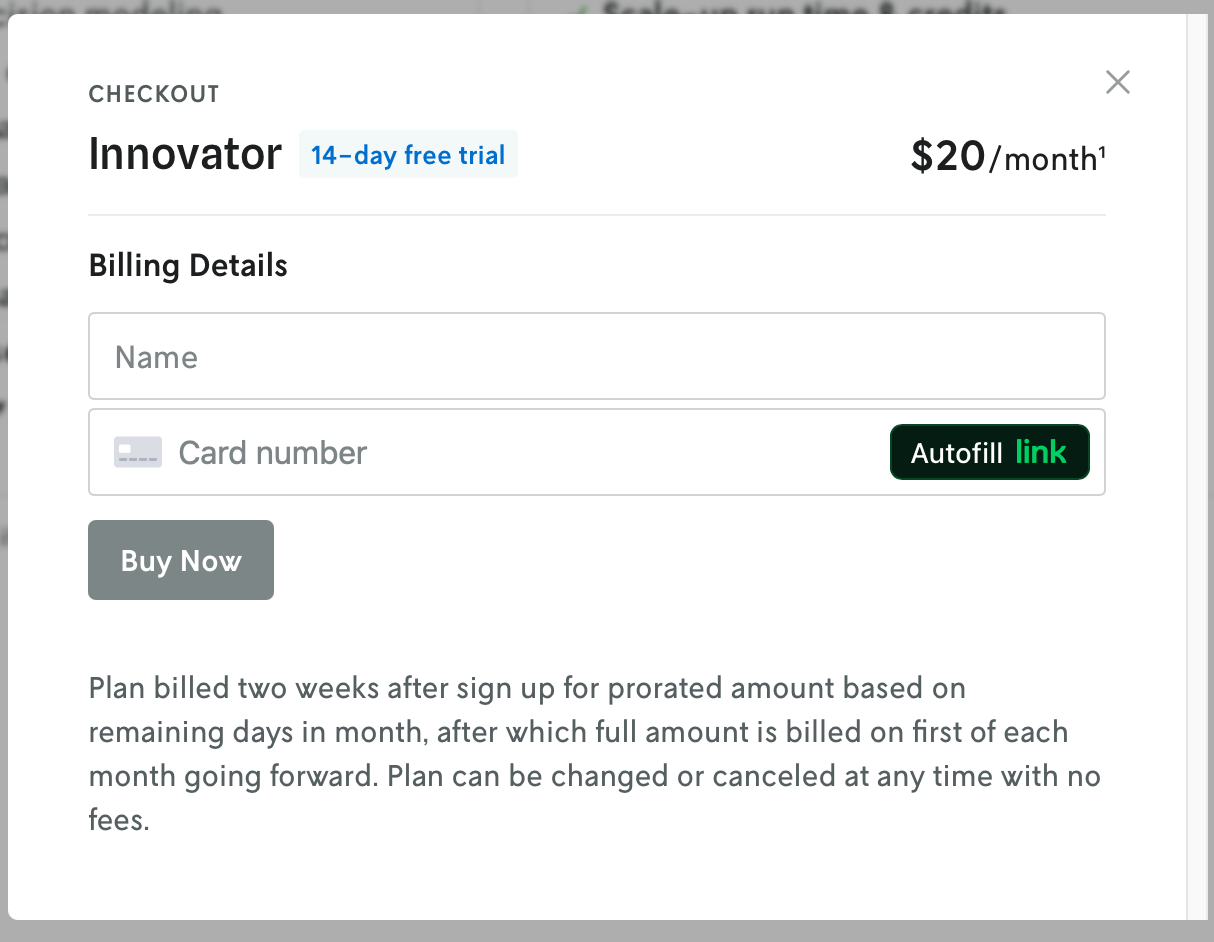
In the example shown, you will be subscribing to an Innovator plan. A pop-up window will appear, and you will need to fill in your payment details.
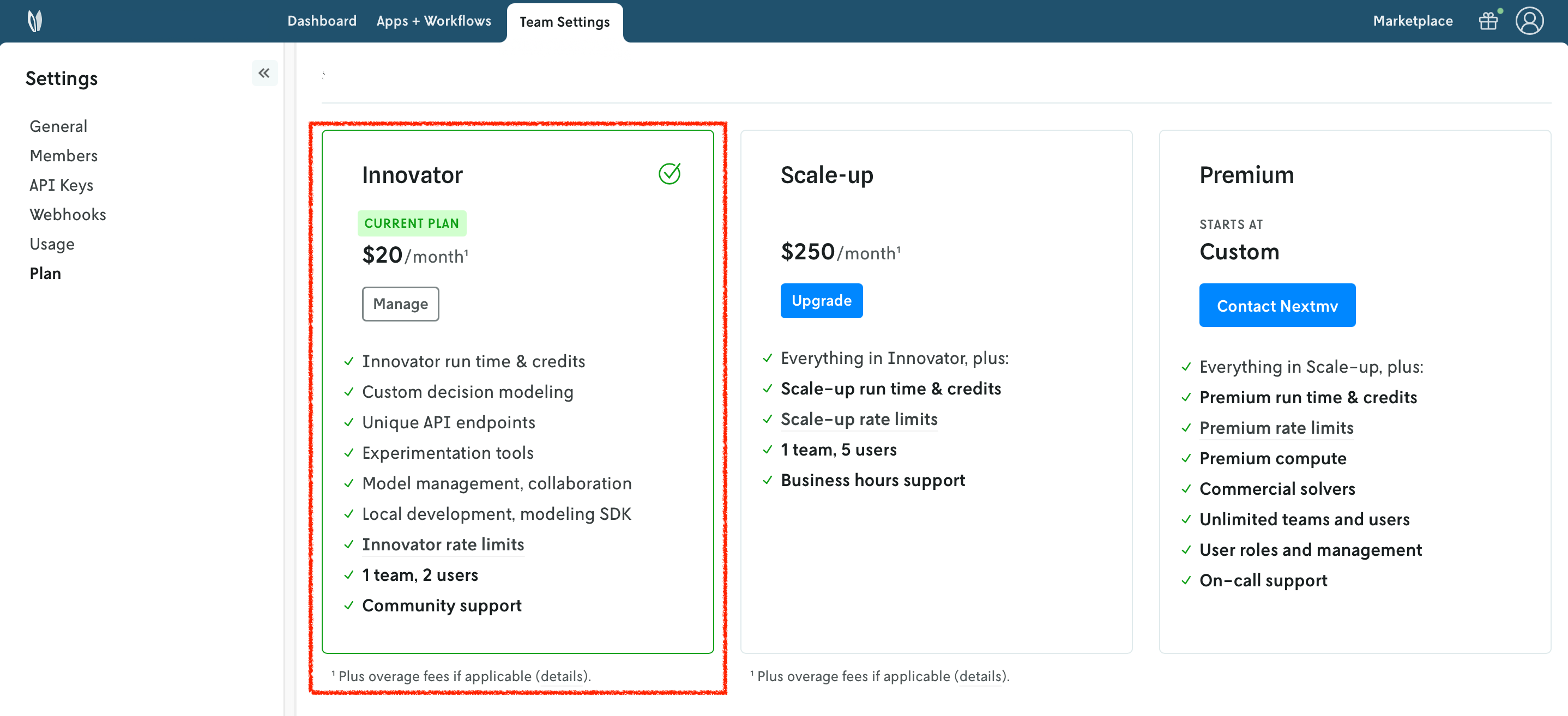
Once your account has been upgraded, you will see an active plan in your account.
6. Create your Nextmv Cloud application
So, what is a Nextmv application? A Nextmv application is an entity that contains a decision model as executable code. An application can make a run by taking an input, executing the decision model, and producing an output. An application is defined by its code, and a configuration file named app.yaml, known as the "app manifest".
Think of the app as a shell, or workspace, that contains your decision model code, and provides the necessary structure to run it.
Run the following command:
This will create a new application in Nextmv Cloud. Note that the name and app ID can be different, but for simplicity this tutorial uses the same name and app ID. This command is saved as app3.sh in the full tutorial code. You can also create applications directly from Nextmv Console.
You can go to the Apps section in the Nextmv Console where you will see your applications.

7. Push your Nextmv application
So far, your application has run locally. You are going to push your app to Nextmv Cloud. Once an application has been pushed, you can run it remotely, perform testing, experimentation, and much more. Pushing is the equivalent of deploying an application, this is, taking the executable code and sending it to Nextmv Cloud.
At the root of your local project (where the app.yaml manifest is located), deploy your app (push it) to Nextmv Cloud:
This command is saved as app4.sh in the full tutorial code.
You can go to the Apps section in the Nextmv Console where you will see your application. You can click on it to see more details. Once you are in the overview of the application in the Nextmv Console, it should show the following:
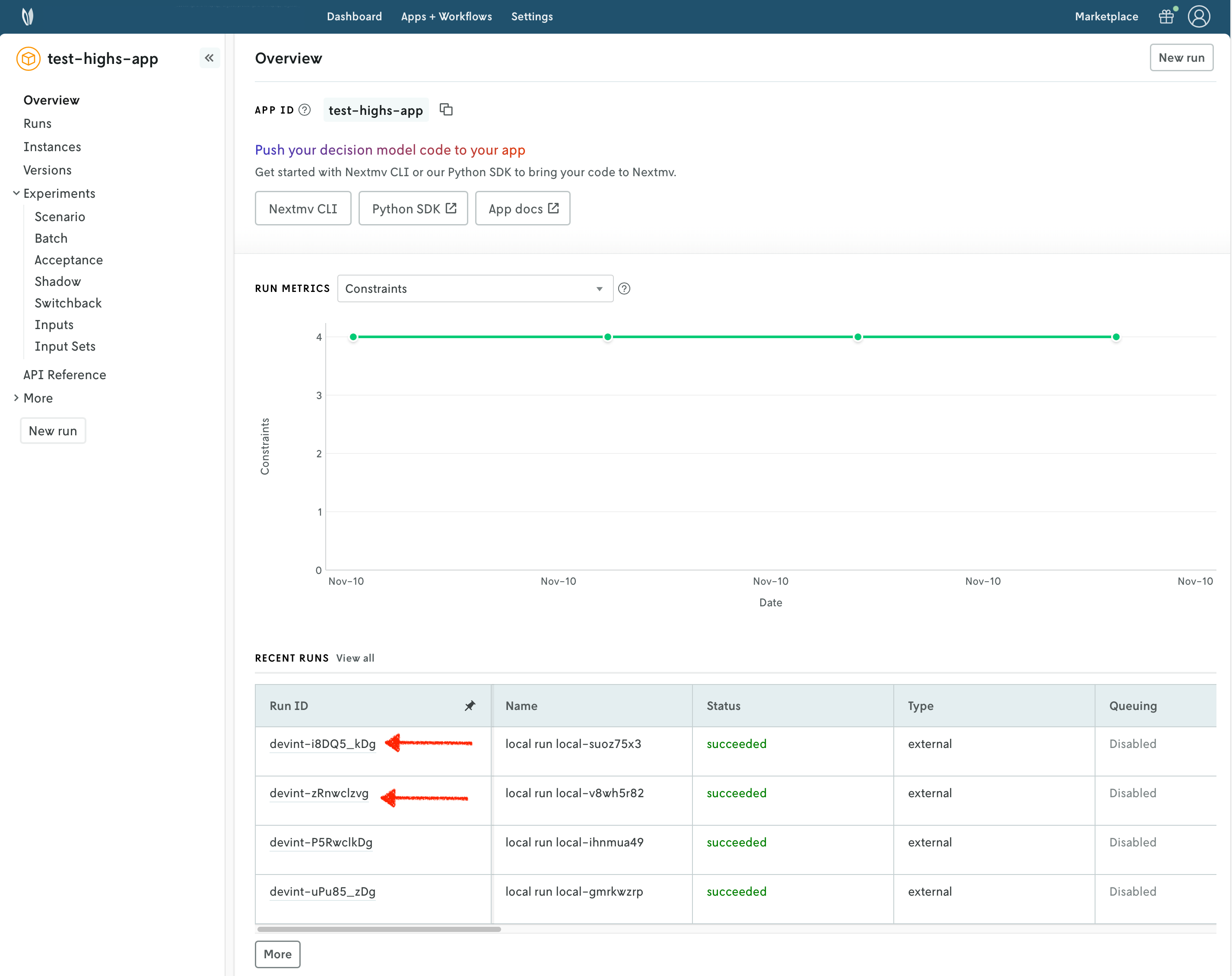
- There is now a pushed executable.
- There is an auto-created
latestinstance, assigned to the executable.
An instance is like the endpoint of the application.
8. Run the Nextmv application remotely
To run the Nextmv application remotely, you have several options. For this tutorial, we will be using the Nextmv Console and CLI.
In the Nextmv Console, in the app overview page:
- Press the
New runbutton. - Drop the data files that you want to use. You will get a preview of the data. You can drop the
input.jsonfile that comes with the community app. - Optionally, configure your run according to the options that can be passed. In this case, you can configure the
duration. - Start the run.
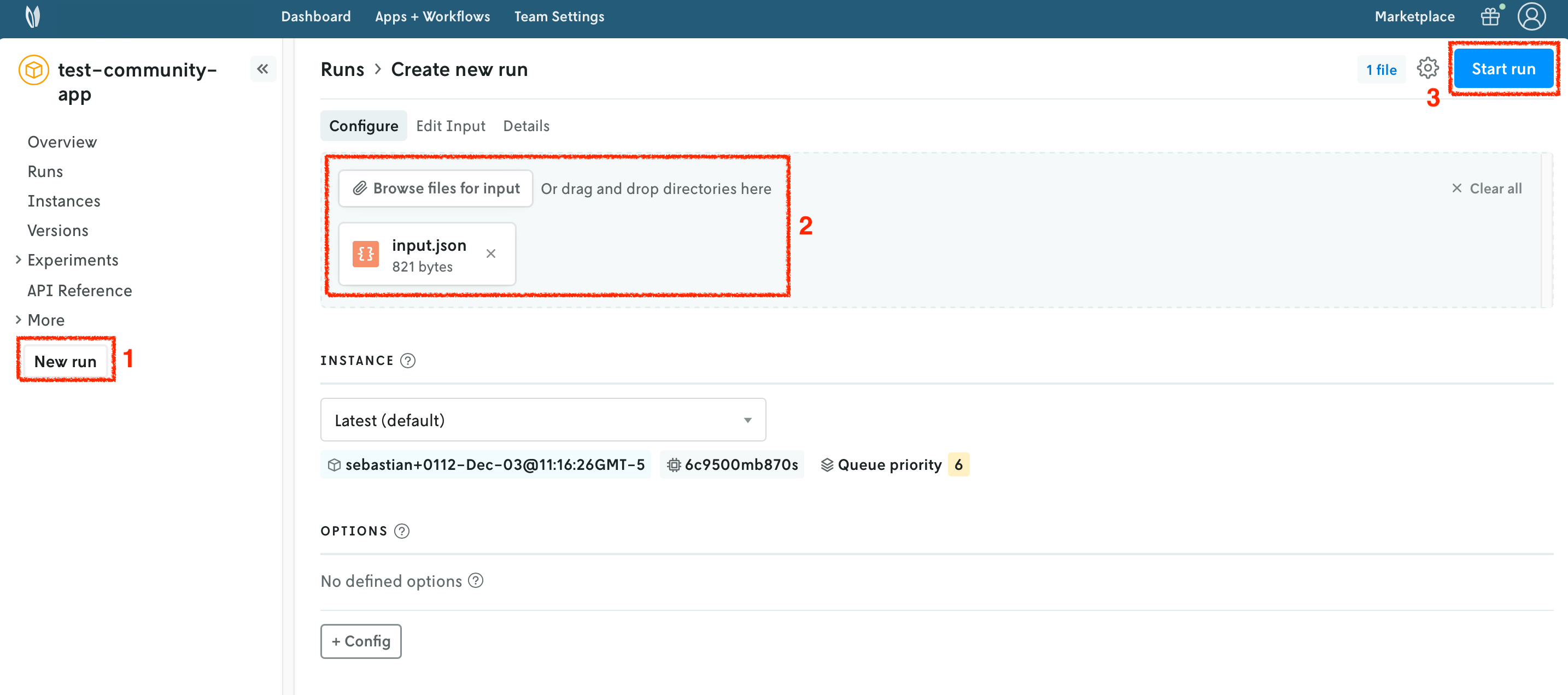
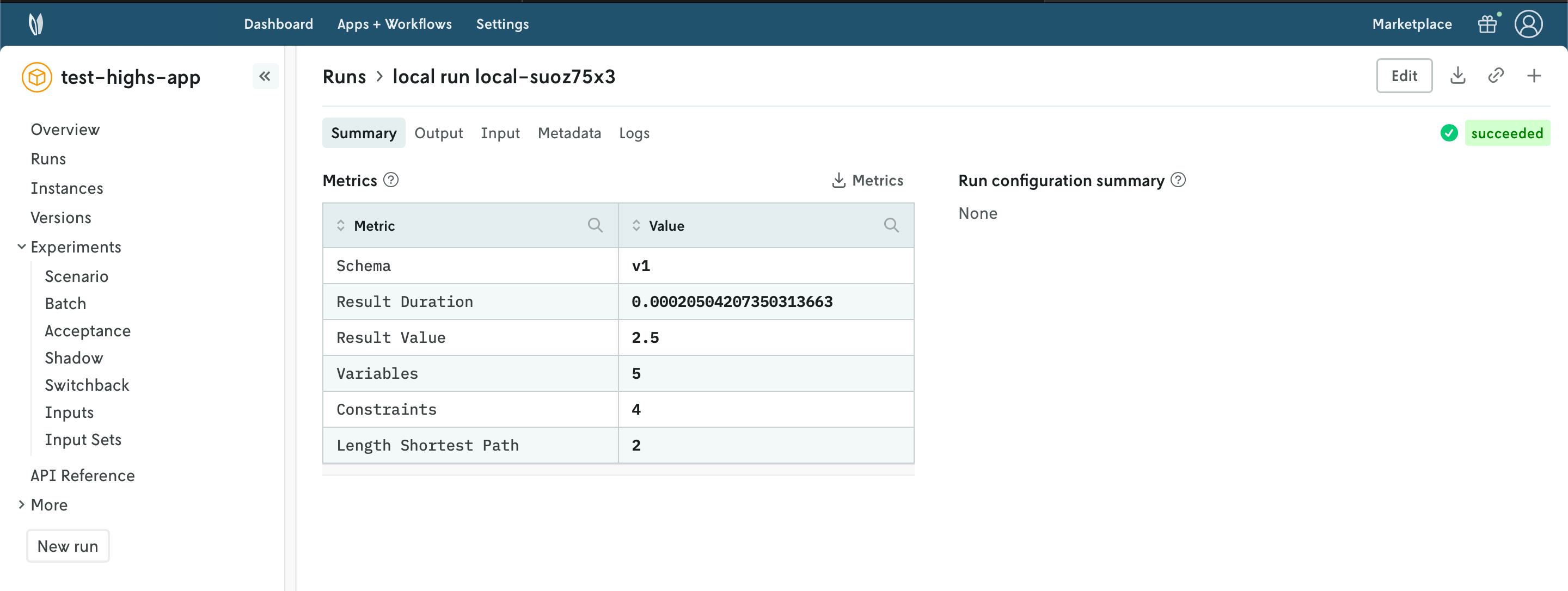
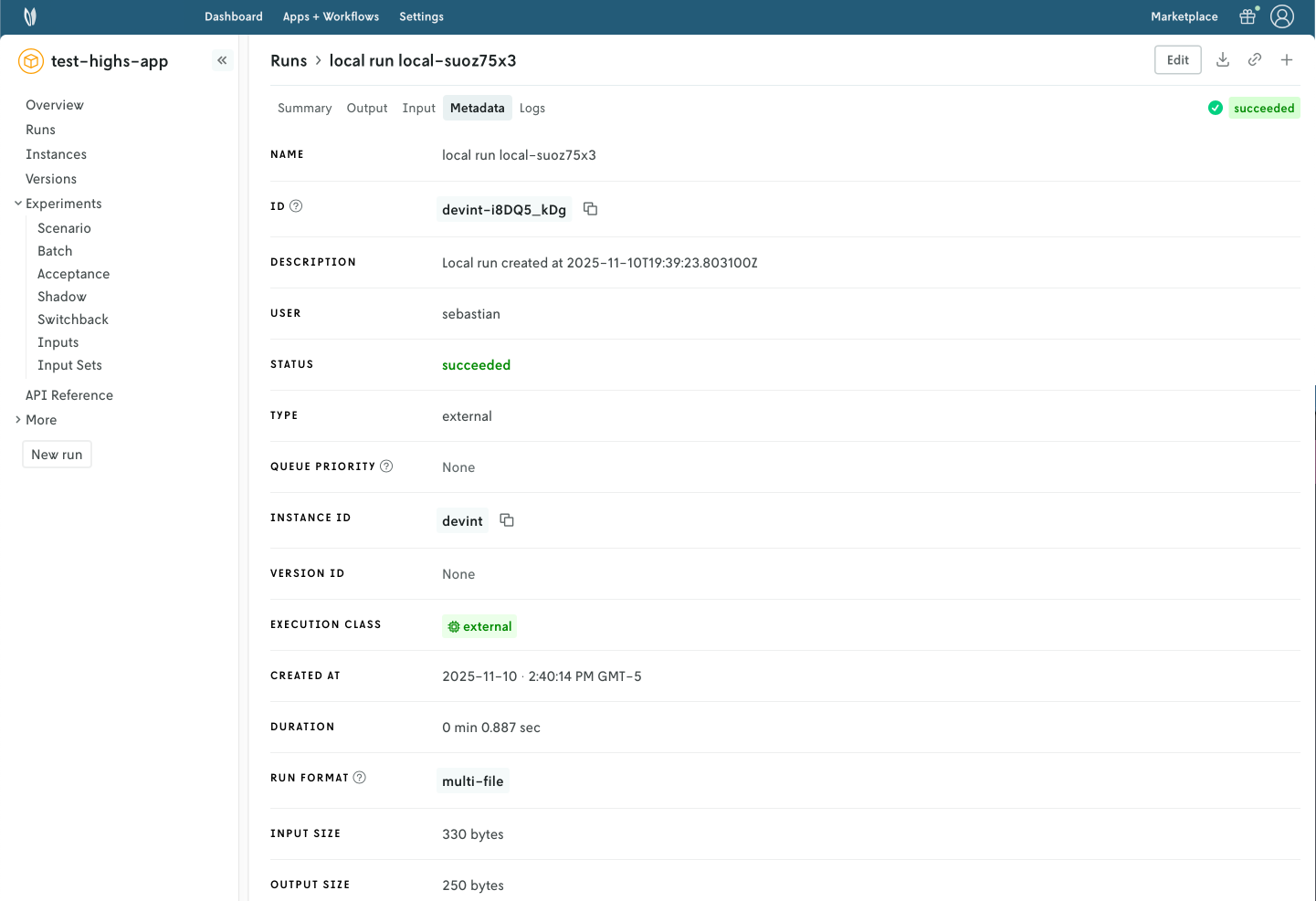
You can use the Nextmv Console to browse the information of the run:
- Summary
- Output
- Input
- Metadata
- Logs
Nextmv is built for collaboration, so you can invite team members to your account and share run URLs.
Alternatively, you can run your Nextmv application using the Nextmv CLI. Here is an example command you can run from the root of the app.
This command is saved as app5.sh in the full tutorial code.
9. Perform a scenario test
We are going to take full advantage of the Nextmv Platform by creating a scenario test. Scenario tests are generally used as an exploratory test to understand the impacts to business metrics (or KPIs) on situations such as:
- Updating a model with a new feature, such as an additional constraint.
- Comparing how the same model performs in different conditions, such as low demand vs. high demand.
- Doing a sensitivity analysis to understand how the model behaves when changing a parameter.
Start by creating an input set. As the name suggests, it is a set of inputs, and it serves as a base so that we can perform runs varying one or more configurations (options). To create an input set, you have several options. For this tutorial, we will be using the Nextmv Console and CLI.
- Navigate to the
Input setssection. - Set a name for your input set.
- Use the
Instance + date rangecreation type given that we already have a few runs on thelatestinstance. - Create the input set.

Another option for creating the input set is using the Nextmv CLI. Here is an example command.
This command is saved as app6.sh in the full tutorial code.
Once your input set has been created, we are going to create a scenario test. Similarly to runs and input sets, you may use the Console or CLI, amongst other options. We will continue to use the Nextmv Console in this tutorial.
- Navigate to the
Scenariosection. - Set a name for your scenario test.
- Select the input set you just created in the previous step.
- Select the
latestinstance. - Create configuration combinations, which will be factored in to create the scenarios. We are setting
durationto be 5, 10, 20 and 30 seconds. - Optionally, you may configure repetitions. These are useful when the results are not deterministic.
- Create the scenario test. Review and confirm the number of scenarios that will be created.
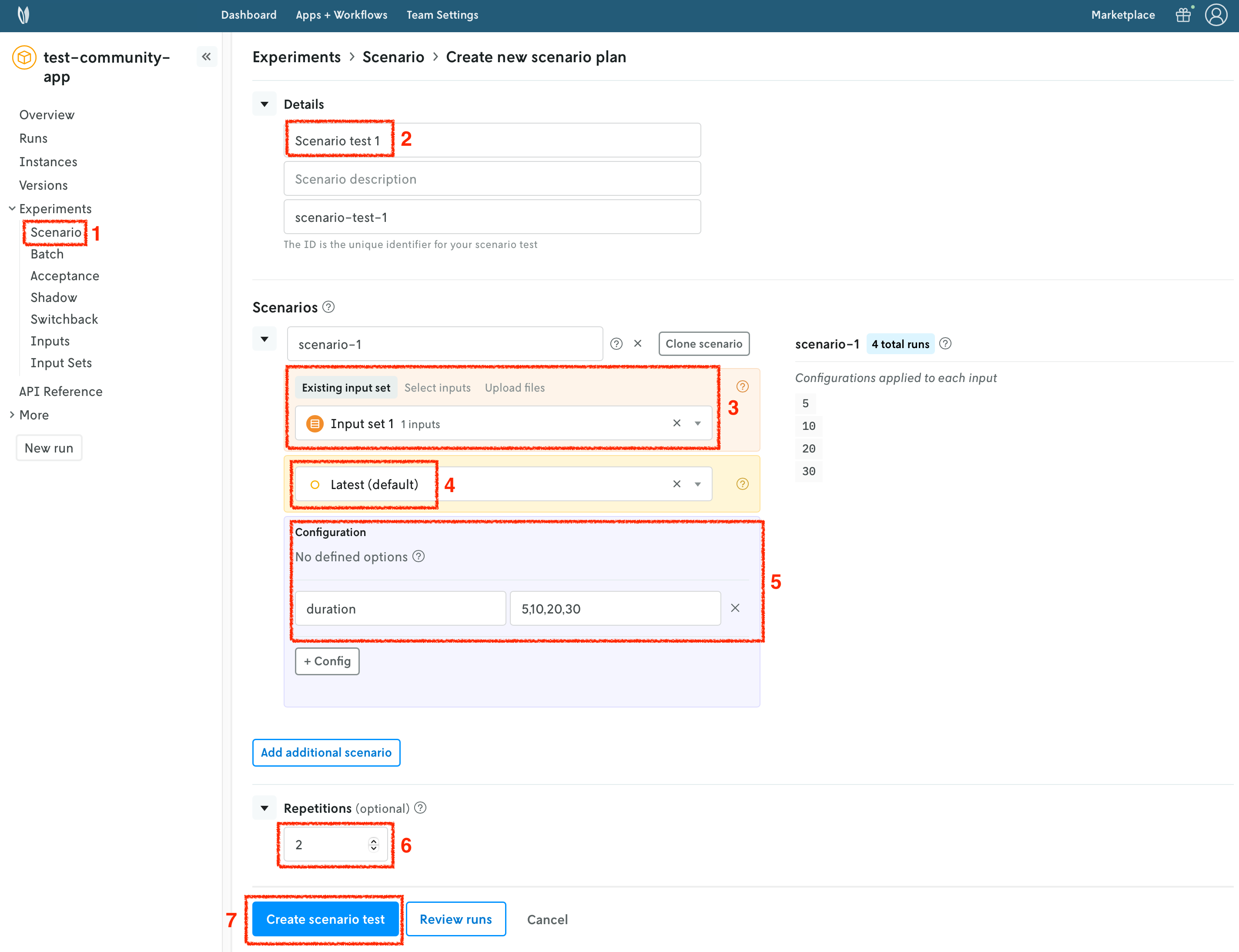
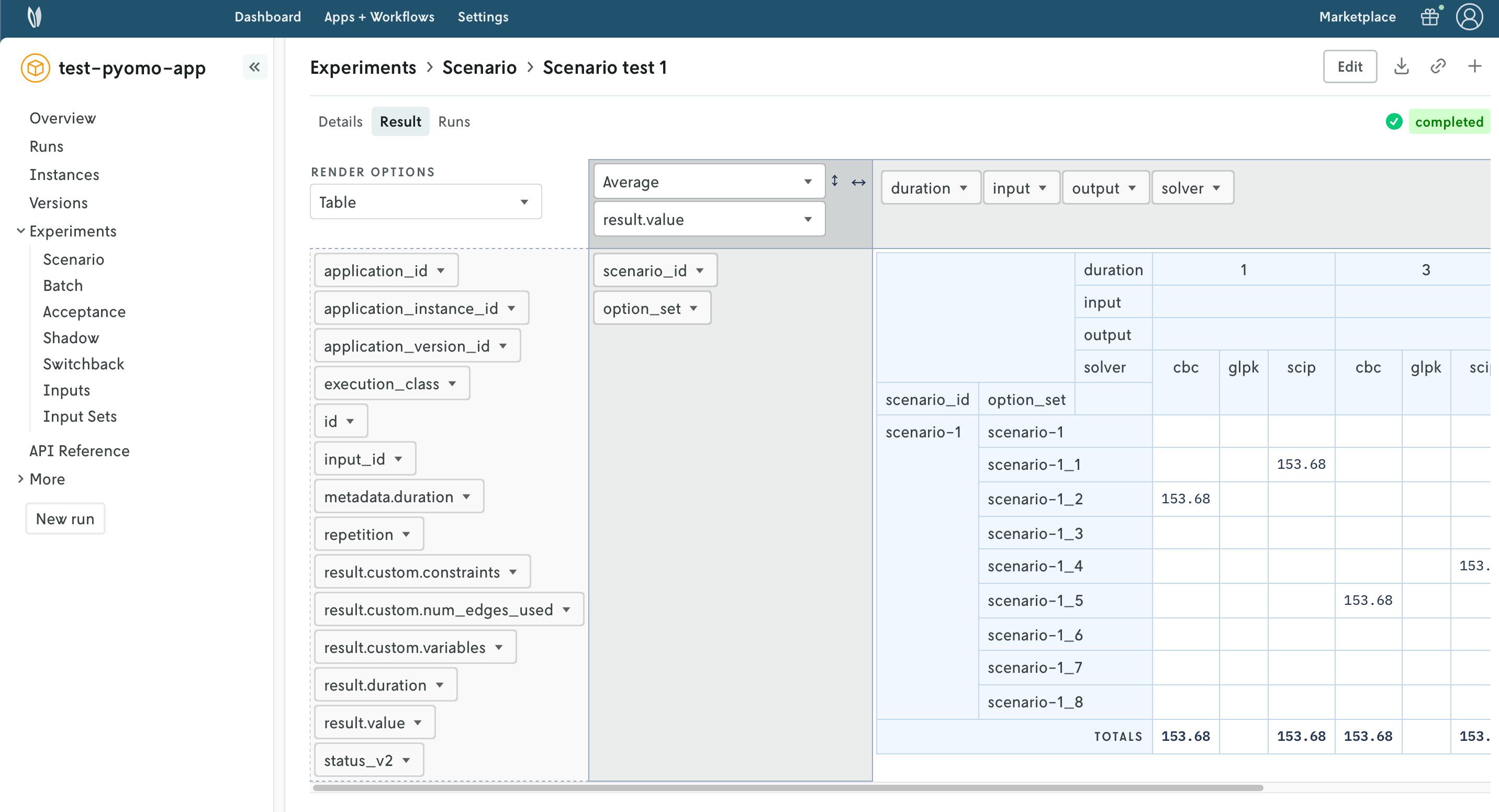
Once all the runs in the scenario test are completed, you can visualize the result of the test. A pivot table is provided to create useful comparisons of your metrics (statistics) across the scenario test runs.
🎉🎉🎉 Congratulations, you have finished this tutorial!
Full tutorial code
You can find the consolidated code examples used in this tutorial in the tutorials GitHub repository. The explore-new-model-cli dir contains all the code that was shown in this tutorial.
Go into the directory for instructions about running the decision model.